I don’t bother to review very many books, in part because I read a lot and in part because writing reviews takes time away from reading. However, I recently received the Kindle version of When Penguins Flew and Water Burned and wanted to quickly recommend it. The book is a recap of the career of Jim Clonts, a B-52 navigator (and, later, radar navigator) during the tail end of the Cold War. Clonts writes in an engaging style, and his tales of life on a bomber crew are absolutely fascinating if you’re at all interested in military aviation. Although his crew position is navigator, he’s also a pilot and so there’s a fair bit of inside-baseball talk. The book is moderately heavy on jargon, as you might expect, but it’s still pretty approachable even if you don’t know anything about bombers or the USAF in general. Well worth a read if you’re flight-minded.
Training Tuesday: the software and services
It should come as no surprise to anyone who’s known me for more than 5 minutes (or read more than one article on this blog): I’m a nerd and I like gadgets. In an effort to get the most out of my training, I’ve tried a variety of different services to track, analyze, and store my workouts, and I frequently see people asking questions about services such as Strava and TrainingPeaks online, so I thought I’d jot down a few Cliffs Notes to help people figure out which services might be right for them.
First, let’s stipulate that pretty much every fitness device manufacturer (Garmin, Jawbone, Withings, Suunto, et al) has their own branded website. I don’t use any of these (except Garmin’s, about which more in a minute). Most devices require you to sync them with the manufacturer’s website. Sometimes those websites can sync to others (more on that in a second), and sometimes they cannot.
The latest trend in this market is the emergence of services such as Apple Health and Microsoft Health that want to aggregate all sorts of your fitness data (with some surprising omissions), analyze it, and then give you “actionable insights.” The things I’m writing about here are all targeted specifically at fitness, not necessarily overall health. For example, none of these sites directly lets you track the foods you eat (though some partner with food trackers). I’m not writing about the Microsoft or Apple services (or Google’s for that matter…. hahahahaha, like I’d give Google all my health data) because I don’t use them, but that might be a good topic for a future article.
Garmin ConnectGarmin recently updated their Connect service, so the version I’m writing about is labeled the “modern” version on the service itself. There’s also a “classic” version which seems to mostly have the same features, but I don’t use it.
Garmin ships a very wide range of products that plug into Garmin Connect: from fitness trackers to multisport watches to action cameras to special-purpose swim and golf watches, if it says “Garmin” on the front and isn’t a GPS, it probably will display data in GC.
The screenshot below gives you an idea of what GC looks like. You can customize each of the tabs across the top (“Sports” being shown in this case) with data blocks, adding, removing, and positioning blocks as you like. The other day, a new block labeled “Golf” showed up, but I gave it the heave-ho posthaste since, of all the fitness activities I enjoy, golf is not one of them.
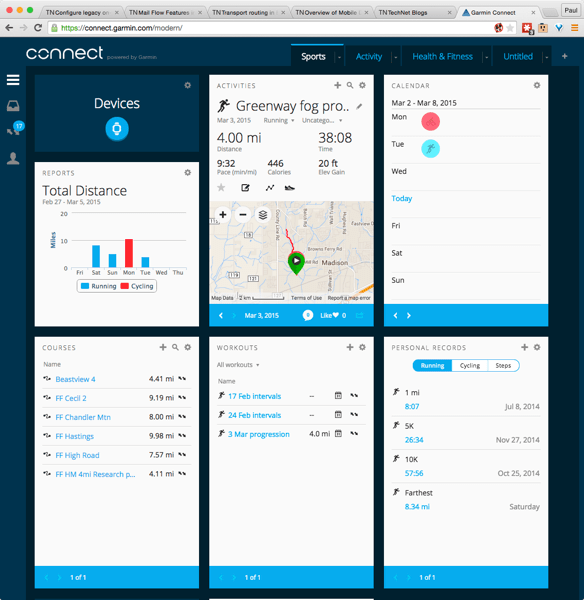
When I got my first Garmin device, I went to the GC site, signed up for an account, downloaded the sync software, and plugged in. This was all seamless, and the instructions provided were clear. Keep in mind that Garmin requires you to use sync software on your PC or Mac to sync your device, although if your device supports Wi-Fi or Bluetooth sync you may not need a computer at all. This sync software has nothing to do with the GC website itself, which you can use from anywhere.
(Personal note to my WP posse: there’s a decent Windows Phone app called Astro Fitness that can sync with GC.)
Overall, GC is my favorite of the connected-device services. While its social features are poor compared to Strava, and it lacks some of the specialty features from MapMyRide/MapMyRun (such as the ability to automatically choose a route if you give it a starting point and a distance), it looks good and is highly customizable. It also integrates pretty broadly into the wider fitness ecosystem; it can automatically sync with TrainingPeaks and Nike+ and can import food data from MyFitnessPal. Garmin’s support is forum-based and has done a good job answering the few issues I’ve raised.
Suunto MovescountIf you own a Suunto device, you’ll be using this to sync workouts from your device and to change many of the settings for the device itself. Suunto, in general, prefers a simpler on-device UI, so you need the website for things such as specifying which activities you want to track or what data fields to display on the watch. On the other hand, that makes the device a bit easier to use, though it means that if you forget to change a critical setting before a race or event, you can’t change it on the watch.
Below, you can see what a typical activity on Movescount looks like. Note that while Garmin Connect uses tabs, Suunto prefers a scrolling vertical layout, so you’re not seeing everything in this picture that would actually be displayed on the page.
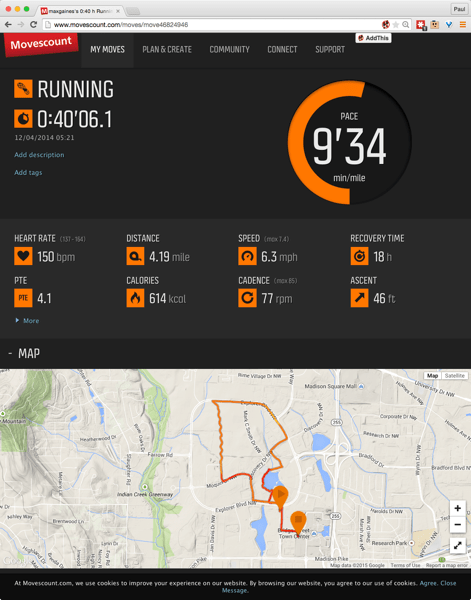
Like GC, Movescount shows you the pace, speed, distance, and location of your activities. It’s important to remember that what you’re seeing is based what the device recorded. While some Garmin devices will compute recovery time themselves, Suunto’s devices don’t, so the recovery time and PTE figures you see here are calculated by the service. On the other hand, the Ambit 2s can calculate “swolf” swim metrics, so Movescount will show them to you.
One persistent issue I had with the Movescount web site is that the distances shown for swims don’t necessarily match what the watch says or what gets synced to external services. For example, if I swim 300m according to the watch, it’s common for the site to say that I swam 275m (or maybe 325m, if it’s feeling generous) but then to display the correct distance when I sync through Tapiirik. Suunto’s support is aware of this problem, but hasn’t fixed it in the six months or so since I reported it. That’s sadly typical of my experiences with their support; the staff seems friendly, but they don’t get stuff done. In addition, the site had multiple weekend-long outages during the nine months or so I was using it daily. While these outages are harmless, they were quite annoying
Movescount has fairly weak social features, although it can automatically post links to your workouts on Facebook and/or Twitter. The site has a ton of groups for various sports, but the ones I was interested in had very few people— a testament to Suunto’s niche status in the fitness world. (Perhaps the groups for diving, hiking, etc were better populated?) Overall, a decent tool but not up to the standard of GC in my opinion.
Strava
Strava’s tagline is “Prove it.” The goal of the site is to help you “analyze and compare your data against yourself, friends, and pros.” To do this, you can either use the iOS or Android app, or a compatible Windows Phone app such as CycleTracks, or a GPS device (which can be a watch, a bike computer, or any of the other supported devices) to track your workouts. As you ride and run, Strava tracks your performance; the fastest person on a given route is labeled as the “king (or queen) of the mountain” (KOM or QOM) and gets a little badge.
Post-workout, you get a display similar to the below. There are three interesting things about this summary. First is the data panel just to the right of the ride title. It shows average and max speeds, heart rates, etc. This is very similar to what you see on other similar sites. Second, notice the “top results” list above the map. Strava automatically tracked my progress across designated parts of the route (known as “segments”) and noticed when my performance was good.

Third is the segments list itself, which you can’t see on this page because the window wasn’t big enough. As you can see below, in the expanded view, for each segment I can see how I performed compared to other people who have ridden or run the same segment. The “Analyze” button zooms in on that segment to show graphs of speed, power, cadence, and elevation for the segment alone, while the “Compare” button lets you track your performance against the KOM or against anyone on your friends list. You can break your performance down to see how it stacks up against people in your age group, weight bracket, friends list, and so on. This is both powerful and motivating, especially when you couple it with the goals feature, which allows you to set a time goal for a particular segment.

Speaking of friends: Strava has the best social features of any of these sites. You can follow (and/or be followed by) your friends, but there are also extensive features for forming clubs. For example, our local “We Run Huntsville” group has a Strava club, so when I look at the activity list I see what my real-world running friends have been doing. Same with my Complete Human Performance coaching posse, and so on. Strava also has a healthy environment of challenges (such as “complete a half-marathon this month” or “bike 250Km”). These challenges don’t win you anything except a little digital badge, plus bragging rights, but as part of the overall goal-setting ethos of the site they’re valuable as spurs.
The basic Strava site is free, although you can pay more for the Premium version, which includes more analytical features, plus videos, workout plans, and other goodies. If you’re interested in giving Premium a try send me an email; I have a few codes that are good for a free month each.)
TrainingPeaks
I use TrainingPeaks (or TP, as it’s universally known) because my coach makes me. He puts workouts in, and they appear on my calendar, as you can see in the screenshot below. Because TP syncs to Garmin (and other services), when I complete a workout its data is almost always automatically assigned to the correct workout; in rare cases, I have to manually download an activity file and then attach it in TP. TP calculates a bunch of metrics that my coach can use to keep my training workload where it should be. As an athlete, I don’t necessarily see all of this data (nor, as a novice, would I know how to interpret it), but the overall ability to plan and track workouts is very useful. You can use this solo just by putting in your workout schedule (and TP has training plans for marathons, various triathlons, etc. that help automate this process). I’d love to see the local Fleet Feet start using this for workout tracking, for example. One very nice feature of TP Premium is that it can export an iCal calendar, so when I tag a workout on TP with a time, it shows up in my calendar— a very useful aid to overall time management.
One complaint I have about TP is that there’s no Windows Phone app, and their web site doesn’t work well at all in mobile IE. I typically copy weight workouts to OneNote (then turn them into checklists, yay!) but it would be nice to be able to see workout details on a device without that extra step. I also have often heard my coach and my fellow CHP athletes complain about refresh and stability problems with TP but haven’t had many problems with it myself. I will say that TP’s support staff are excellent; every time I’ve had a question or problem, they have quickly and efficiently resolved it. The premium version of TP is $10/month.
TrainerRoad
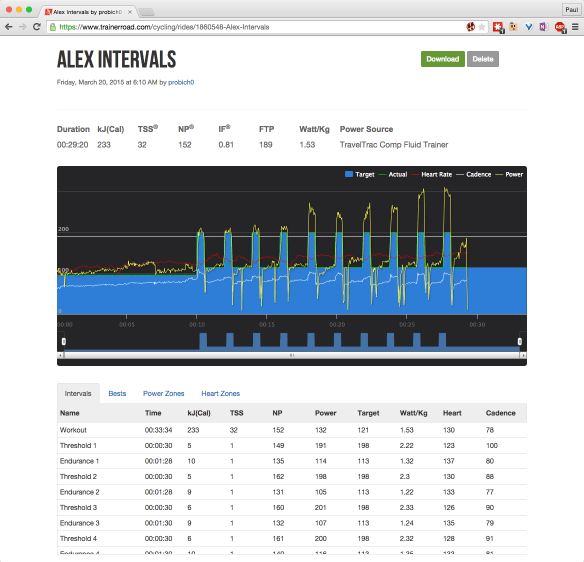
I LOVE THIS SERVICE and have written about it a couple of times before (most recently here). It combines bike workout plans with power measurement (either using a power meter or an algorithm that estimates power output based on your wheel speed and the resistance profile of your indoor trainer), then gives you immediate feedback about your power on the bike. You run the TR app on your iOS device or PC, and you immediately see what your performance looks like. The center graph in the screenshot below is basically what you see during a workout: the yellow trace is your power output. During a workout, you also see your cadence, heart rate, and other useful data. It makes working out to a specific standard much easier: you ride until the yellow line is where you want it over the blue, then hold it— easier said than done, but much easier (at least for me) than trying to figure it out on my own.
TR costs $10/month, which gives you access both to the service (and its ability to sync directly to Garmin Connect, which is nice) and its workout library, which includes all sorts of cycling-specific training plans. I recommend it highly.
Tapiirik
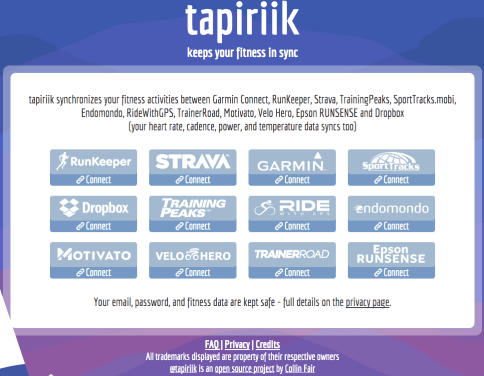
Tapiirik is very simple: it syncs services. You can choose to sync any supported service to any other supported service, in any combination. For a while, I had RunKeeper, Strava, TrainingPeaks, and Endomondo all set up. Suunto would sync to RunKeeper, which would sync through Tapiirik to the other services I use (some of which had their own sync relationships, such as the link from RunKeeper to Fitocracy). Now that Garmin, Strava, and TrainingPeaks all talk to each other, I don’t use this much any more but it’s a valuable tool if you want to talk to any of the services it supports.For $2/year this is a superb value.
Everything else
MapMyFitness: this is really a collection of very similar sites: MapMyRide, MapMyRun, etc. My favorite feature here is the “route genius”, which will lay out a route of the specified distance given a starting point and workout type. This service costs around $30/year for the premium version, which is required to use “route genius”. I use it because I got a year for free when I bought my headphones, but you may not find the features that compelling.
Nike+: this is the software I first started with. I liked it, but it only does running, and it only works with the Nike+ app for iOS (and maybe Android?) While the presentation is top notch, it lacks many of the features in Strava and Garmin, so I ditched it. Garmin recently added sync with Nike+, so if I ever go back to an iOS device I might take a look at it again.
There are lots of other services in this same mold: Runkeeper is another example. And then there are tons of apps that work with these services on various platforms… and more coming all the while. So this article isn’t comprehensive, and it will probably be outdated sooner than I’d like, but such is life with cloud services.. even when those services are supposed to be for something fun.

Filed under Fitness
Training Tuesday: first week with the Garmin Fenix 3
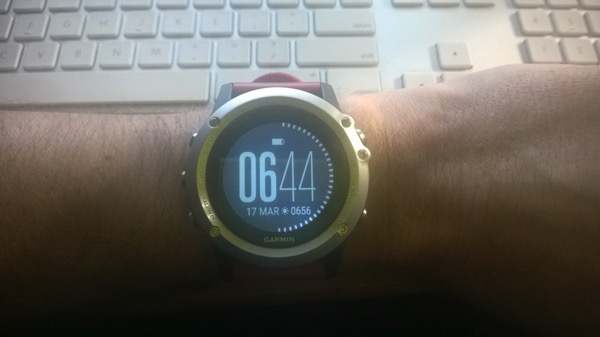
Not long after I got my Garmin 920xt, Garmin announced the Fenix 3, which combines the same Connect IQ software platform with a round face and (to me) a much more attractive industrial design. I ordered one in January, figuring that I could probably sell the 920xt without too much trouble, then I settled in to wait for its arrival. I’ve had it about a week now, just long enough to get a sense of how it compares to the 920xt.

First,I love the physical appearance and build quality of the watch. It reminds me of the Suunto Ambit 2s, though it’s a bit heavier. Whereas the 920xt felt plastic-y (makes sense, given that it was plastic), the Fenix 3 feels like a real watch. Screen brightness and clarity are excellent; the screen is a different shape but has the same resolution as the one in the 920xt. One significant difference is that the 920xt has six hardware buttons, while the Fenix 3 only has five. They’re also arranged very differently; for example, the “up” button on the 920xt and the “start/stop” button on the Fenix 3 are in the same location, on the upper right side of the watch. The difference in button location has been the hardest thing for me to get used to. Starting and stopping activities is easy, but there’s no longer a single-button shortcut for “connect to wifi” and there’s no dedicated button to bring up settings— instead, you hold down the “up” button. I’m still trying to master the button combo to enter drill mode when swimming and have occasionally fumbled with the other buttons in the midst of an activity, but I’m getting used to it now.
In terms of functionality, the Fenix 3 does everything the 920xt does for tracking runs, swims, and so on. However, it has four additional sensors: an altimeter, a barometer, a compass, and a temperature sensor. The Fenix 3 software thus has several features missing from the 920xt, including the ability to display data from all those sensors, “trail run” and “hike” activity modes that track your altitude using the altimeter instead of GPS altitude, and a slightly different UI paradigm for interacting with the sensors: each sensor type has its own dedicated widget, which you page through using the “up” and “down” buttons. Here’s a quick video I shot showing what the widget displays look like. The widget labeled “VIRB” is there for controlling Garmin VIRB action cameras. I much prefer having a separate widget for this than the 920xt approach of having the VIRB controller be a data page that appears within an activity. Here’s a quick video I shot showing a little of what the user interface looks like.
There’s about a $50 cost difference between the 920xt and the Fenix 3, assuming you buy just the watch and not the bundle with the heart-rate strap (and that you buy the basic Fenix 3, not the fancier and heavier one with sapphire glass). For me, the cost was well worth having a nicer-looking watch. One downside to the form factor of the Fenix 3 is that there currently isn’t a quick-release kit, as there is for the 920xt, so if I want to use it while riding the bike I’ll need to improvise a mount. That’s a small disadvantage, though, for the way I use the watch.
Of course, the back-end Garmin Connect service doesn’t care which watch you use to gather your data as long as it has the Garmin logo on the front, so switching the 920xt for the Fenix 3 was a non-issue there.
If you’d like to know more about the Fenix 3, I highly recommend this lengthy review at dcrainmaker. It goes into much more detail about the watch, how it works, and how it compares to its peers.
License usage reporting in Office 365, part 2
If you’ve been wondering where part 2 of my series on reporting in Office 365 was, wonder no more; it just went live this morning.
Filed under Office 365, UC&C
Microsoft rolls out Clutter admin improvements
Back in November, I wrote about my early experience with the Office 365 Clutter feature. I’ve been using it on and off– mostly off, due to a rare bug that surfaced because my mailbox is actually hosted on a portion of the Office 365 cloud that descends from the old Exchange Labs “friends and family” tenant. The bug kept Clutter from correctly moving clutter messages automatically; once it was fixed things returned to normal after I re-enabled the Clutter feature, and I’ve been happily using it since.
One of the big advantages of Office 365 is that the service team can develop and release new features much faster than they can for on-premises services. Sure enough, Microsoft today announced three new features for Clutter.
The biggest of these is the ability to create transport rules that flag messages, or senders, as exempt from Clutter processing. This is exactly the same thing as specifying safe senders for message hygiene filtering, although the implementation is a little different. You’ll create a transport rule that has the conditions and exceptions you want, but with an action that adds a header value of “ClutterBypassedByTransportRuleOverride: TRUE”, as described here. I have not personally had even a single false positive from Clutter since I’ve been testing it, and I haven’t seen any complaints about false positive problems from other users, MVPs, or customers. Having said that, Microsoft was smart to include a way to exempt certain messages from processing, as this will soothe some users and tenant administrators who are worried about the potential to have important messages be misdirected.
Second, the Clutter folder can now be managed by retention policies. This is an eminently logical thing to do, and it nicely highlights the flexibility of Exchange’s messaging records management system.
Rounding out the trio, you now have a very limited ability to customize the message that users see when they enable Clutter for their mailboxes: you can change the display name that the notification appears to be from, and you’ll soon be abe to change the logo. Frankly, this is weak sauce; there’s no way to customize the text of the notification, add custom URLs to it, or otherwise modify it in a useful way. Long-time Exchange administrators will recognize a familiar pattern exemplified by customizable delivery status notifications (DSNs), quota warning messages, and MailTips in previous versions of Exchange: first Microsoft delivered a useful feature with no customization capability, then they enabled limited customization, then (after prolonged complaining from customers) they broadened the range of things that could be customized. Let’s hope that pattern holds here.
There’s still one weak spot in the Clutter feature set: it still requires individual users to opt in (or out). While it’s true that users would likely be alarmed by the sudden forceful application or removal of the Clutter feature from their mailboxes, it’s also true that Office 365 as a whole needs to provide better controls for administrators to regulate which service features users have access to. I am hopeful that we’ll see better admin controls (and reporting) for this feature in the future.
While these improvements aren’t necessarily earth-shaking, they do add some welcome utility to what is already a valuable feature. Clutter is a great example of a feature that can make a measurable positive difference in users’ satisfaction with the service, and I look forward to more improvements in the feature.
Filed under Office 365, UC&C
License usage reporting in Office 365, part 1
On this blog, I write about whatever interests me. To the chagrin of some folks, this often includes aviation, fitness, and various complaints, but hey.. it could be worse. I save the really inane stuff for Twitter.
Besides the content I post here, though, I also blog at the Summit 7 Systems blog collective. Right now I’m publishing a series on reporting in Office 365. The first part of the series, on license usage reporting, is here, and the second part will be published shortly. In general, when I post content there that might be of interest to readers here, I’ll cross-post it with a short post like this one.
Filed under Office 365, UC&C
Training Tuesday: putting TrainerRoad on my handlebars with the Dell Venue 8 Pro
A few weeks ago, I wrote about the basics required for indoor bike training. I recently made a couple of tweaks that have made my setup much more pleasant to use and I thought I’d document them.
First, I still use TrainerRoad whenever I ride indoors. Their training plans have a huge variety of workouts for whatever you need, and the custom workout creator makes it easy to build whatever odd interval combinations Alex assigns me. I’d been using it by either propping up my Surface Pro 3 or MacBook Pro in front of the TV, which was suboptimal because it required me to drag a laptop over near the TV, set it up, and hope that Pancake didn’t knock it over.
Then it hit me: I had a perfectly good solution right on my bedside table in the form of my Dell Venue 8 Pro.
First, I needed a mount. A little poking around on Amazon yielded the Arkon SM632 for $18. It has four little prongs, two of which are spring-loaded, that hold the tablet or phone in place. There’s also a safety strap that goes across the device for extra security, but I didn’t bother with it. It installed easily in about 2 minutes and easily held the Venue 8 Pro. So far it seems quite sturdy, but I’m not about to ride on the road with a 7″ tablet on my handlebars.
The Venue Pro 8 has a single micro-USB port, so I needed an adapter (and had been meaning to buy one anyway). For $7, Amazon was happy to sell me a two-pack of USB On-The-Go (OTG) adapters.
The hardest part of the install turned out to be getting TrainerRoad set up. It installed easily but I had to tell it to use the virtual power feature, which required me to pick the trainer I use from a drop-down list. It is impossible to do this using the on-screen keyboard (since it doesn’t have up/down arrow keys) and there’s no way to scroll. I ended up plugging a mouse into the USB adapter and that did the trick.
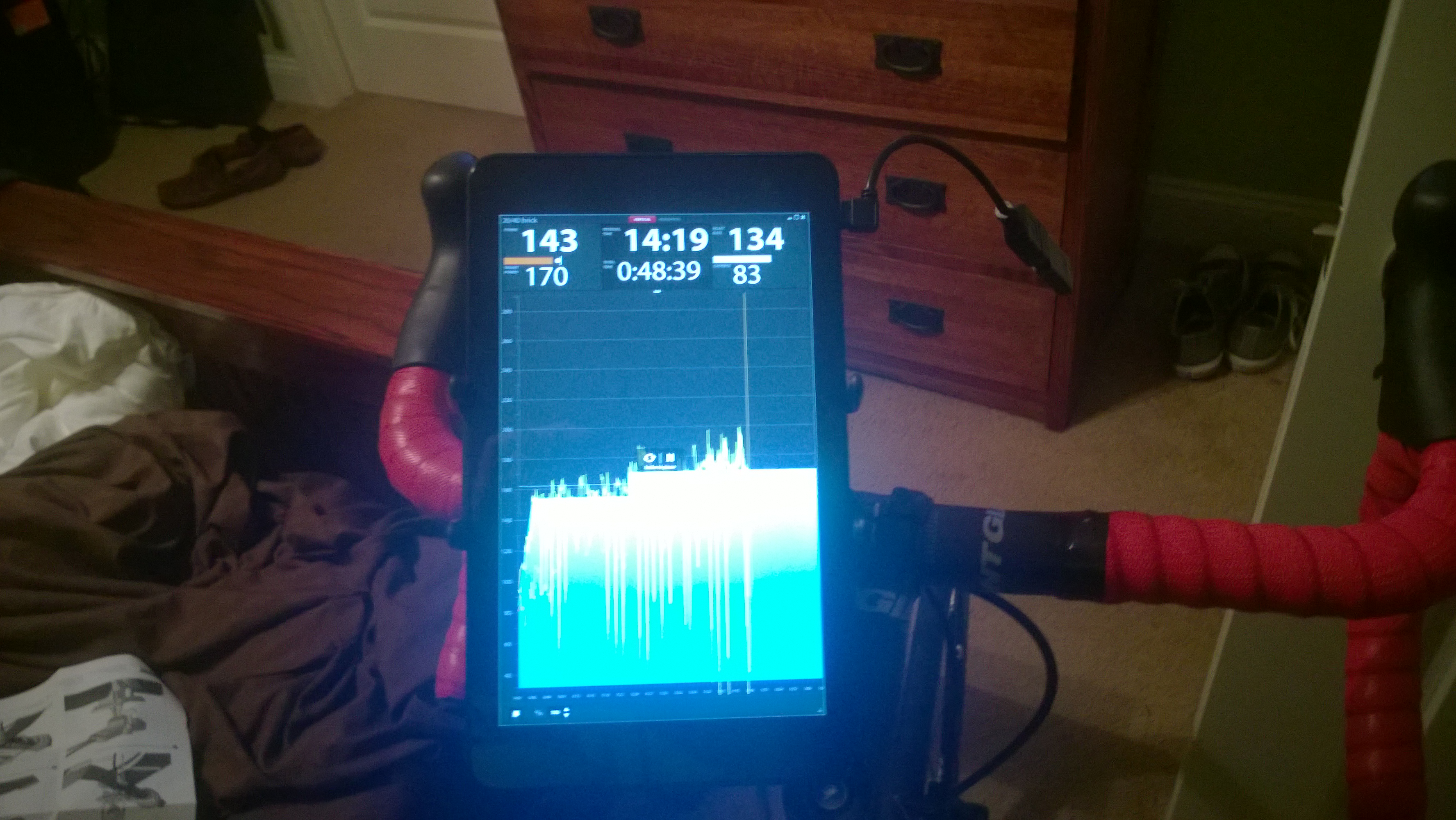
The picture below shows what I ended up with; you can see the USB adapter and ANT+ stick just to the right of the tablet screen. Works like a champ!
Filed under Fitness
Training Tuesday: half-marathon now, triathlon soon
Time for a progress check-in on my training plans.
First, CHP. I am still delighted with the coaching I’m getting from Alex and the accomplishments and support of my fellow athletes is very motivating. For example, Dani Overcash, a 123lb woman, just set a new US record for deadlifting 402lbs at the RUM powerlifting meet this weekend. It is really cool to look in the FB group and see how many people are setting PRs, winning competitions (in powerlifting, strongman, Brazilian jiu-jitsu, and triathlon, among other sports), and generally being badasses.
Second, I started the Fleet Feet half-marathon program a few weeks ago. The program is pretty typical of half-marathon training programs: one long, slowish run on weekends, speed work one day a week, and a couple of shorter tempo runs. There are a few people in the program I know from the local running / triathlon community, which is fun. The long runs are Saturday mornings at 6am, which I semi-resent since that would otherwise be one of the few days when I don’t get up early. The program overall has a different vibe from TRI101, too, in part because of the different mix of coaches, and there have been a few hiccups with organization and logistics, but I am enjoying it and it should be good preparation for the Bridge Street half-marathon.
Third, I signed up for my first two triathlons of the season: the New Orleans Sprint on March 29 and the Lake Pflugerville Sprint in late June. There will undoubtedly be others in between (including the Issaquah Sprint, I hope!) Signing up was sort of a forcing function; I have been doing mostly weights and running, with occasional rides on the trainer, but I knew it was about time to switch to a more tri-focused regimen. I told Alex Sunday that I’d signed up and he immediately scheduled me for a brick Monday– and tomorrow I swim. Time to get back to it!
Fourth, I’m still debating which of the two local Olympic-distance training programs to sign up for. Note that I’m not debating whether or not I want a local group program. I do, because I like the energy and social connection of training with others. Fleet Feet is doing their TRI201 program, which I expect to be just like TRI101 with different distances, and local tri legend Rick Greif is doing his own program. Rick’s program is more expensive but includes some extras (including race registration for Renaissance Man), so I am leaning towards that.
I have a bunch more posts that I need to write, including an explanation of the setup I ended up with for bike training and a race report for the most excellent Tick Ridge Trek trail 10K I ran this past weekend, but this’ll do for now. See you on the road (or in the pool, or on the trail, or maybe at the pasta buffet!)
Filed under Fitness
Getting started with indoor bike training
A coworker was asking me about indoor cycling, so I took a few minutes to put together some notes on the configuration I use. He wanted a basic setup that would let him train indoors and minimize time spent away from his family. Here’s what I told him.
First, you should know that you can train in two ways:
- Structured workouts that target a particular power level (your functional threshold power, or FTP). An example workout is here. For example, you might ride a warmup for 10min at 60% of your FTP, then do interval sets of 80-115% FTP, then a cooldown.
- Workouts where you ride for a set distance or duration while keeping your heart rate and/or pedal cadence in a certain range. These are akin to what you might do in a spin class, although a good instructor will provide a much more structured experience with intervals.
Both of these depend on having a way for something to measure how fast the pedals are going (cadence) and, optionally, your heart rate. Structured power-based workouts require you to have some way to either measure or estimate how much power you’re putting on the pedals.
Assuming you want to spend as little as possible, here’s what you need to get started with bike trainer workouts:
- A bike trainer. This DC Rainmaker article is the canonical list of recommendations for every price range. I got one of the Performance Bike TravelTrac units for about $100. I had borrowed a Kinetic Road Machine and loved it; it is much smoother than the TravelTrac but also costs 2x as much.
- Speed and cadence sensors for your bike. There are two sensor protocols: ANT+ and Bluetooth Low Energy. You may be able to use BLE sensors with your phone and selected software, and it might work with your laptop, depending on what kind of gear you have. ANT+ is much more widely used for these sensors. I have a Wahoo ANT+ speed/cadence combo sensor but Garmin and several other companies make them. (Ignore the price at that link; sensors cost from $35-75 depending on brand).
- If you want structured workouts, TrainerRoad or some other training software. TR is $10/month, has a full money-back guarantee, and is very well worth it. TR will calculate what they call “virtual power” based on your pedal cadence, wheel speed, and the type of trainer you have. You will also need an ANT+ USB stick for your laptop so the TrainerRoad app can see your cadence and heart rate data. I use a $17 one from Amazon.
- If you want cadence / HR-based workouts, you need some way to see what your cadence and/or heart rate are. You can use a phone app for iOS or Android such as Strava or Wahoo Fit, the TrainerRoad app if you’ve subscribed, or a bike computer or watch that speaks ANT+. Beware that not every ANT+ device can display all types of sensors. For example, the Garmin Forerunner 15 running watch will display ANT+ heart rate data but ignores cycling sensors because it’s a running-only watch.
- If you want to gather heart rate data, you’ll need a heart rate monitor. I use the Scosche RHYTHM+ because a) it’s an arm/wrist strap and not a chest strap and b) it can transmit both BLE and ANT+.
There are lots of other ways to spend money on this stuff: there are computer-controlled trainers that adjust the resistance to give you realistic uphill and downhill rides, power meters that measure your power using strain gauges, bike computers that display your cadence, speed, etc. on a handlebar-mounted unit, and so on. But with the basic stuff above (which I’d estimate will cost less than $200 all in) you can get a terrific training experience without leaving your house.
Filed under Fitness
Universal version of Outlook coming to your phone
Big news from today’s Windows 10 announcement: Microsoft will be shipping a “universal” version of Outlook that works on Windows tablets, phones, and PCs. This is a really interesting move, and not something I expected based on the existence of OWA for Devices (MOWA) on iOS and Android. The universal Outlook uses the universal version of Word as its editing engine, a huge plus because it delivers all the rich formatting tools available on Windows PCs (and which are still, sadly, missing from Mac Outlook, hint hint), and during the demo, Joe Belfiore showed a fluid touch-based interface that nonetheless preserved much of the look and feel of Outlook and OWA.
This announcement raises a lot of interesting questions, though. A partial list, just off the top of my head… (and a disclaimer: I haven’t seen any preview versions of Office 16 so perhaps these are naive questions that have all been well dealt with in the code)
- Is this new version of Outlook a replacement for, or a complement to, the existing rich Outlook client? In other words, will it be able to do everything that I can do with Outlook 2013 on a Surface Pro 3? If not, what will they leave out?
- Will this app replace the native WP calendar and contacts app? I’d guess not, given that the People app got a lot of play in today’s announcement.
- Outlook’s resource requirements would seem to be a poor fit for phones and low-end tablets. I’d imagine that we’ll have sync controls similar to what exist on WP8.1 to allow users to sync a certain amount, but not necessarily all, of their mail, but it’s going to take a lot of optimization to provide acceptable performance on these devices.
- Will this version of Outlook support on-premises servers? If so, that means it probably won’t rely on MAPI over HTTPS, which isn’t widely deployed. But it’s hard to imagine Outlook built completely on Exchange Web Services.
- Will the universal Outlook team match the slow release cadence of desktop Office or the faster cadence of, say, the Lync mobile clients? One of the nicest features of OWA for Devices is that new OWA/Office 365 features (such as Clutter and the People view) just automatically show up in MOWA because it’s essentially a container for OWA views. How will the universal Outlook team bake in support for new features as Exchange and Office 365 ship them?
- Will Exchange ActiveSync-specific features (especially remote device wipe) be included in this version of Outlook? They aren’t included in the existing Outlook family, of course.
- If the answer is “no, but you can use InTune or Office 365 MDM”, that’s going to displease a lot of existing users. On the other hand, you can’t remotely wipe a desktop Office installation, something which has led several of my customers to block Outlook Anywhere so that people can’t easily use Outlook from personal machines.
- If the answer is “yes”, then it will be fascinating to see how Outlook interacts with native data such as contacts stored on the device.
- What does this mean for OWA for Devices? I’d guess that we won’t see Outlook for iOS and Android, but I wouldn’t necessarily rule it out. Maybe we’re headed back to the days of yore, where the premium clients run on Microsoft operating systems, with a sort of best-effort client set for competitors.
- Is this the logical vehicle for incorporating the technology Microsoft acquired from Acompli? Or is that being baked in somewhere else?
- When can I get a Surface Hub?
Given the upcoming availability of previews for Windows 10 for phones, I suppose we’ll get the answers to these questions soon.
Filed under UC&C
Training Tuesday: a few odds and ends
No time for a real post this week, so instead you get the dreaded random-list-of-bullets…
- I’m still loving the Garmin 920xt. After teaching it about my phone’s tethered wifi network, I can now upload workouts from wherever I happen to be, which is handy when I’m on the road. The ability to set high/low alerts for pace and heart rate is very useful too.
- I’ve been working with Alex Viada and his posse at Complete Human Performance for about six weeks now and I am already seeing some differences that I really like. I thrive on structure so having a training plan to follow works really well for me: I just show up, do whatever workout I’m assigned according to my TrainingPeaks calendar, and call it good.
- The other day I deadlifted 315 lbs. While this is a small amount in the grand scheme of the powerlifting universe, it was a huge milestone for me. The bar actually bent when I lifted the weight. I had a huge ear-to-ear grin after completing the lift, and it inspired my 13-year-old (who was trying to reverse-psych me before the lift by saying “I don’t think you can do it, Dad”) to hit 135 x 5 for his own deadlift PR. Then I followed that up by setting a new bench PR of 135×2. Headed in the right direction!
- Last night I had a 45-minute run where my target was to keep my heart rate in zone 2. I set a high/low alert on my watch and kept it right around 150 for a steady 45 minutes without stopping. If you had told me a year ago that I could run 4.5 miles without stopping I would’ve laughed in your face.
- My Z2 pace is about 10:00/mi, while my flat-out race pace is about 8:30/mi for 5Ks. I need to do some more 10K distances to see what feels good at that distance; I’ll get the opportunity when I start my half-marathon training in a few weeks. My tentative goal for my first half is to get it under 2:15.
- I need to spend more time in the pool. I always say that, and yet I rarely do it.
- Working in an office has made it harder for me to consistently eat well. Since we have a full kitchen, this is more of an excuse than an actual problem; I can cook proteins, mix shakes, and so on at work just like I can at home, assuming a) I remember to bring the ingredients and b) my coworkers don’t eat them.
- Is it triathlon season yet?
Filed under Fitness
Microsoft sneaks out Mac Outlook update
Good news: Microsoft just issued an updated version of Outlook for Mac. (I guess that’s the official name, as opposed to the older Outlook 2011). The list of fixes is pretty nondescript: you can change calendar colors, add alt-text to images, and use custom AD RMS templates. I suspect most of the effort for this release was actually focused on the “Top crashes fixed” item in the KB article.
Bad news: you have to manually download it from the Office 365 portal. The AutoUpdate mechanism shipped with Office 2011 doesn’t yet know how to handle updates for Outlook for Mac. I suppose Microsoft could either update the Office 2011 AU mechanism or ship a new one as part of a future Outlook update; presumably the latter choice would actually deliver the Office 2015 update mechanism, since there’s undoubtedly going to be one.
The real news here is how quickly Microsoft released this update. While this is only one release, it’s an excellent sign that we got it quickly, and it makes me hopeful that we’ll see a steady stream of updates and fixes for the Mac Office apps in the future— with a cadence more akin to the Lync Mobile clients releases than the glacial pace of past Mac Office updates.
Training Tuesday: Upgrading to the Garmin Forerunner 920xt
When I saw that Garmin had a new triathlon watch on the way that included an SDK, I thought “hey, that might make a neat upgrade” and ordered one. Unfortunately, production delays dragged the release date out, so I ended up canceling my original order and reordering. I got the new watch about two weeks ago and have been putting it through its paces since. I’ve used it on the bike indoors and out, for outdoor runs, and while weightlifting. It’s also an activity tracker that tracks steps and sleep and uses that data to estimate calorie burn. Here are a few of my thoughts based on my experience so far.
First, IMHO it is ugly compared to the Suunto. That’s partly a result of the white/red color scheme but also because there are lots of little 1970s-style touches (the GARMIN logo, the little red pinstripes around the bezel) that don’t need to be there. It is substantially smaller than the Garmin 910t and about the same thickness as the Suunto. The band is comfortable enough for daily wear.

Side by side, I prefer the appearance of the Suunto.
Setup was very straightforward. I signed up for a Garmin Connect account, plugged in the watch, and that was about it. Suunto requires that you set up most aspects of its watches (including which activity types will be available on the watch) using their web site. This is very flexible, and generally easier than punching buttons on the watch, but it means that you can’t customize anything on the watch itself— a drawback if you get to a race and notice “oops, I forgot to enable open water swim mode” (which I’ve done!)
As typical, the first thing I did with the watch was play with all the settings. For example, at first I thought I’d want the “auto scroll” option on so that the watch would flip through all available data pages. It turns out that auto scroll means whenever I looked at the watch, it was likely to be showing me anything other than the data items I was most interested in at that point in time, so I turned it back off.
A few things I particularly liked:
- Garmin’s Connect web site is much more attractive and more useful than Suunto’s. I love seeing weather conditions recorded along with my workout. (Take a look at this workout as an example).
- Being able to set a target pace, then have the watch buzz / beep any time I deviated from it, is a great help. I’m still not quite sure at what interval the watch checks pace.
- Wireless sync via wifi is brilliant. I was on the street corner outside my house, walking back in, and the watch buzzed to tell me it had uploaded my workout.
- It was trivial to pair the watch with my bike sensors, my HRM band, and the TrainerRelay feature in TrainerRoad.
- GPS acquisition seems just as fast as the Ambit 2s, which is noteworthy for its fast sync.
The watch has a few drawbacks, too. I don’t have a phone that works with the 920xt’s Bluetooth features, which means I don’t get notifications on my wrist, can’t use live tracking, and so on. The chances that Garmin will support Windows Phone are just about nil, so I have to decide if I am willing to switch to a supported platform if I want to have these features. The jury is still out; there are lots of things I prefer about WP compared to iOS, and I am loath to give them up just to have wrist notifications. I suppose that’s not the watch’s fault though, especially since the Ambit 2s lacks those features altogether.
Another annoyance: you can’t customize the data fields in the same way that you can with the Suunto. There I was able to set up a custom screen that had exactly the data fields I wanted, no more and no less. On the 920xt it looks like you can enable individual data pages, but you can’t customize the fields that appear in those pages. For example, when cycling I want a page that shows current speed, current cadence, and total distance. The 920xt has all that data, but not in a single page.
There are some things I don’t understand about creating workouts in Garmin Connect and sending them to the watch, too. It looks like the workflow is to log in to GC, create the workout, then plug your watch in for USB sync. When I do this, sometimes I get the workout on the watch and sometimes I don’t. This may be a watch problem, a Mac sync connector problem, a GC problem, or some combination thereof. I haven’t done it enough yet to have a really solid repro case.
The social features of Garmin Connect are poor, too. In fairness they are no worse than Suunto’s, but compared to the features in Strava, MapMyRun, RunKeeper, and Fitocracy, they stink. It’s hard to find friends, to name just one flaw. I’d love to see them fix this in a near-term update.
A few tips for things that were not obvious to me at first:
- You turn the backlight on by pressing the power button. By default, it shuts back off after 8 seconds. This is adjustable: go to Settings > System > Backlight and you can change the delay. The Ambit 2s had a lock button that you could use to lock the light on; there doesn’t seem to be an equivalent.
- On the Suunto, you define a multisport activity on the web site, load it to the watch, and transition between activities. You can do that on the Garmin as well, but you can also just switch modes on the watch— so you can go from weightlifting to running to open water swim to cycling all within a single activity. The Garmin Connect web site still seems to have some issues dealing with multi-activity files, or it’s possible that I have something set up wrong.
- The activity monitor knows when you’re moving your body, but it doesn’t know when you’re unable to move, e.g. sitting in a car in traffic, so it will buzz you anyway. Such is life.
Overall I’m delighted with the watch so far. Garmin has been the gold standard for multi-sport watches and I expect that, as I learn to use it, I’ll get more useful training data from it. The ability to easily do intervals and to track my pace are already making a different. Bring on race season!
Filed under Fitness
My first week with Office 365 Clutter
Immediately after Microsoft announced that Clutter was available, I enabled it in all my personal tenants and started training it. As you may recall, you can train Clutter in two ways: implicitly (as it sees how you interact with mail from particular senders, such as by ignoring it or deleting it without reading it) or explicitly (by moving messages into or out of the Clutter folder). Because I’m fairly impatient, I set about explicit training by moving messages to the Clutter folder. I’ve done this with all of the clients I use: Outlook for Mac, OWA, Outlook 2013, the iOS mail app, and Outlook Mobile. Whenever possible I move the message while leaving it unread, so as not to make Clutter think I’m interested.
The upshot: it works reasonably well, but it seems to have trouble learning about messages from some sources. For example, both Strava and Twitter alerts remain resolutely un-Cluttered even though I’ve been moving 100% of those messages, unread, to the folder. I think that’s because the message subject for these messages often changes to reflect the message contents (e.g. “@jaapwess retweeted a Tweet you were mentioned in!”) and that confuses the algorithm in some way. It may be that the algorithm used to categorize these messages needs more data to act on before it can decide. The downside of machine learning systems is that, as an end user, you often can’t see just what the machine has learned, only the actions it takes. In this regard, machine learning is somewhat like owning a cat. I can see that Clutter isn’t moving some messages I think it should, but I don’t have any way to see why, nor any way to effectively correct it. This reminds me of the good old days of training neural networks from HNC Software to do various interesting things and sometimes being bewildered by the resulting behavior.
One bit of good news: I have been very pleased to see no false positives; that is, Clutter has not taken any mail I wanted to read and treated it as clutter. If the price of zero false positives is that some real clutter isn’t treated as such, I’m OK with that.
The junk mail filtering infrastructure continues to catch some messages that might more properly be treated as clutter, e.g. the flood of marketing crap I get from GameStop. I don’t mind such messages being treated as junk, though.
One unexpected side effect is that I have been much more diligent than usual about unsubscribing from newsletters or marketing mails that I no longer care about. This has helped to cut the volume of clutter I have to deal with.
In closing, I note that no matter how many times I tell Clutter that notifications from Yammer should be treated as clutter, they keep going right into my Inbox. I suspect a conspiracy.
Filed under Office 365, UC&C