Flying Friday: of shops and annuals

I haven’t been flying much lately, sad to say. This is mostly because of weather, but partly because I have been busy with other things. However, as spring approaches, I’ve been eager to get back in the air. A couple of weeks ago, I went flying with John, my CFII, and shot some practice instrument approaches. While I was a bit rusty, I was still able to fly a good ILS, even in the winds, but I had a little bit of trouble making the KLN94 do what I wanted to get set up for the GPS approach into Huntsville… its time is coming, though, and I hope to finally get the Avidyne IFD540 installed in early summer. That’s still some time away, though. There are two hurdles to cross first: getting our engine monitor installed and getting the plane through its required annual inspection.

First, the engine monitor. Like almost all other airplanes of this vintage, 706 has a battery of analog gauges that report on the engine health. There’s nothing wrong with this, as these instruments tend to be very reliable. The tachometer, manifold pressure gauge, and fuel flow gauge are all very important. However, the standard engine instruments have several shortcomings. First, our plane had a conventional single gauge for reporting exhaust gas temperature (EGT), and the aftermarket cylinder head temperature (CHT) gauge wasn’t working. The problem with single-channel EGT and CHT instruments is that they only tell you what one cylinder is doing, so there’s no way to see what’s going on with the other five cylinders. Second is that the gauges are scattered all around the panel; besides the EGT and CHT indicators, there’s a suction gauge (which tells you whether the engine-driven vacuum pump that drives the gyros is working), the fuel gauges, and so on. Third is that these gauges only show instantaneous data, not trends, and they don’t alert you to unusual conditions.

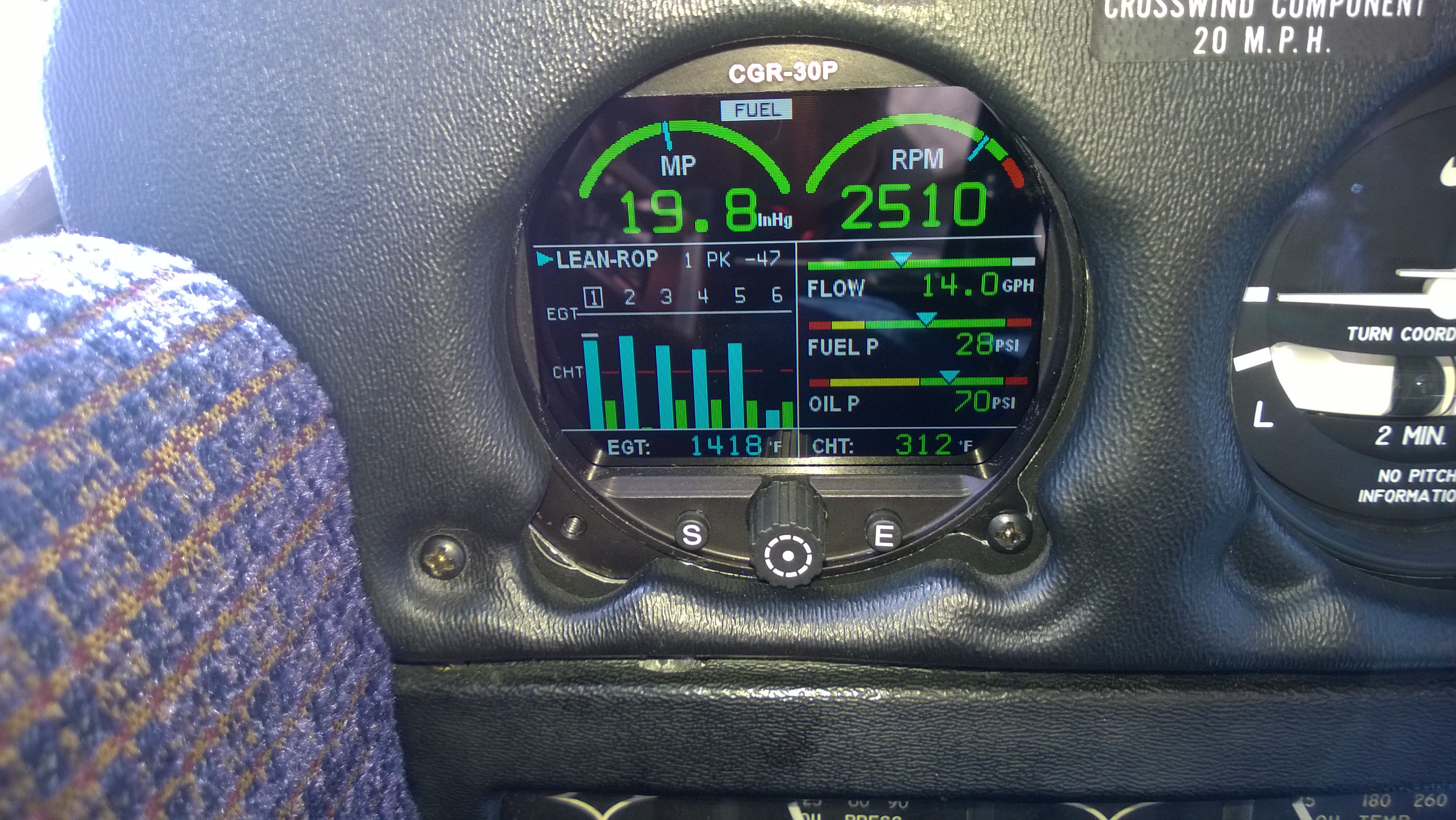
The solution: get an engine monitor. After much shopping and head-scratching, we settled on the CGR-30P from Electronics International. The video below will give you an idea of what this magic box does:

From my perspective, the CGR-30P does two critical things: it alerts you when an engine parameter goes out of limits (say, if the oil pressure decreases unexpectedly), and it logs data that can be used for later analysis. As a nice side benefit, it monitors CHT and EGT for all six cylinders, which has the dual benefit of giving early indication of potential misbehavior and providing the data we need to operate the engine as efficiently as possible.

(Brief digression: there is a lot of religious argument over the “correct” way to adjust the fuel/air mixture in piston engines. This article by noted mechanic Mike Busch explains the topic, and the debate, very well, along with recommending the approach that I will be using once I have accurate CHT and EGT data).

Getting the CGR-30P installed, though, requires an avionics shop. Derek and I have struggled with finding a good local shop. There’s no avionics shop at our home field, and C-Cubed, which used to be at Huntsville,  closed a few months ago. Their spot was taken over by a company called Advanced Technical Avionics (ATA). After a brief period of confusion occasioned by a management change (translation: someone got fired), we got the plane into the shop on Tuesday to start the installation. With any luck, in a week or so, the plane will be back in the air– which is good, as I have a trip planned to New Orleans next month for the New Orleans Sprint triathlon, my first of the year.

Right after I get back from New Orleans, the plane needs to go in for its annual inspection. Every general aviation aircraft is required to undergo a comprehensive airworthiness inspection each year. There are specific things that the shop will check based on the engine and airframe manufacturer’s recommendations, and there can be other things that need checking or adjustment based on how much the plane has been flown. For example, some components need to be checked every 100 or 500 hours. (This example inspection checklist gives you an idea of some of the things that must be inspected.) Then, because this is a 40-year-old airplane, there will inevitably be some things that need to be repaired or replaced because they’re worn out or broken. For example, our air conditioner doesn’t work any longer, so we’ll have the shop take a look at it as long as they’re crawling around inside the plane.

On the advice of Savvy, our maintenance management company, we’re using a Piper service center for the annual– DLK Aviation in Kennesaw, Georgia. That means that we’ll have to ferry the plane there and back again; I’ll probably rent a plane from Redstone and pick Derek up after he drops the plane off, but driving isn’t out of the question. Once the plane arrives, after one to two weeks (and some unknown amount of money, depending on whether there are any expensive surprises), we’ll have the plane back and be good for another year.

Leave a comment

Filed under aviation

Training Tuesday: putting TrainerRoad on my handlebars with the Dell Venue 8 Pro

A few weeks ago, I wrote about the basics required for indoor bike training. I recently made a couple of tweaks that have made my setup much more pleasant to use and I thought I’d document them.

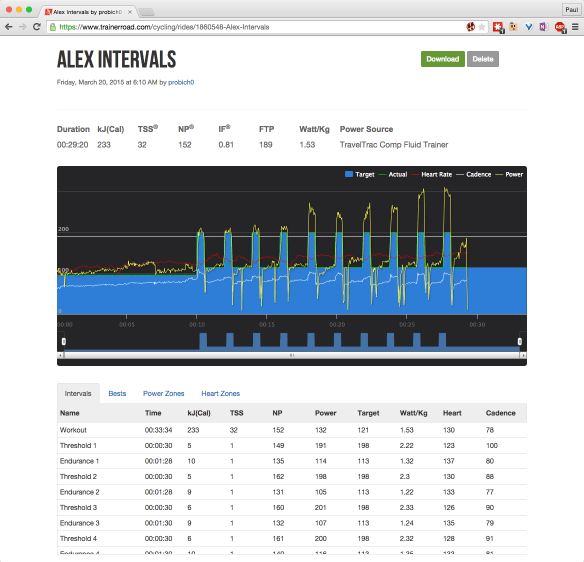
First, I still use TrainerRoad whenever I ride indoors. Their training plans have a huge variety of workouts for whatever you need, and the custom workout creator makes it easy to build whatever odd interval combinations Alex assigns me. I’d been using it by either propping up my Surface Pro 3 or MacBook Pro in front of the TV, which was suboptimal because it required me to drag a laptop over near the TV, set it up, and hope that Pancake didn’t knock it over.

Then it hit me: I had a perfectly good solution right on my bedside table in the form of my Dell Venue 8 Pro.

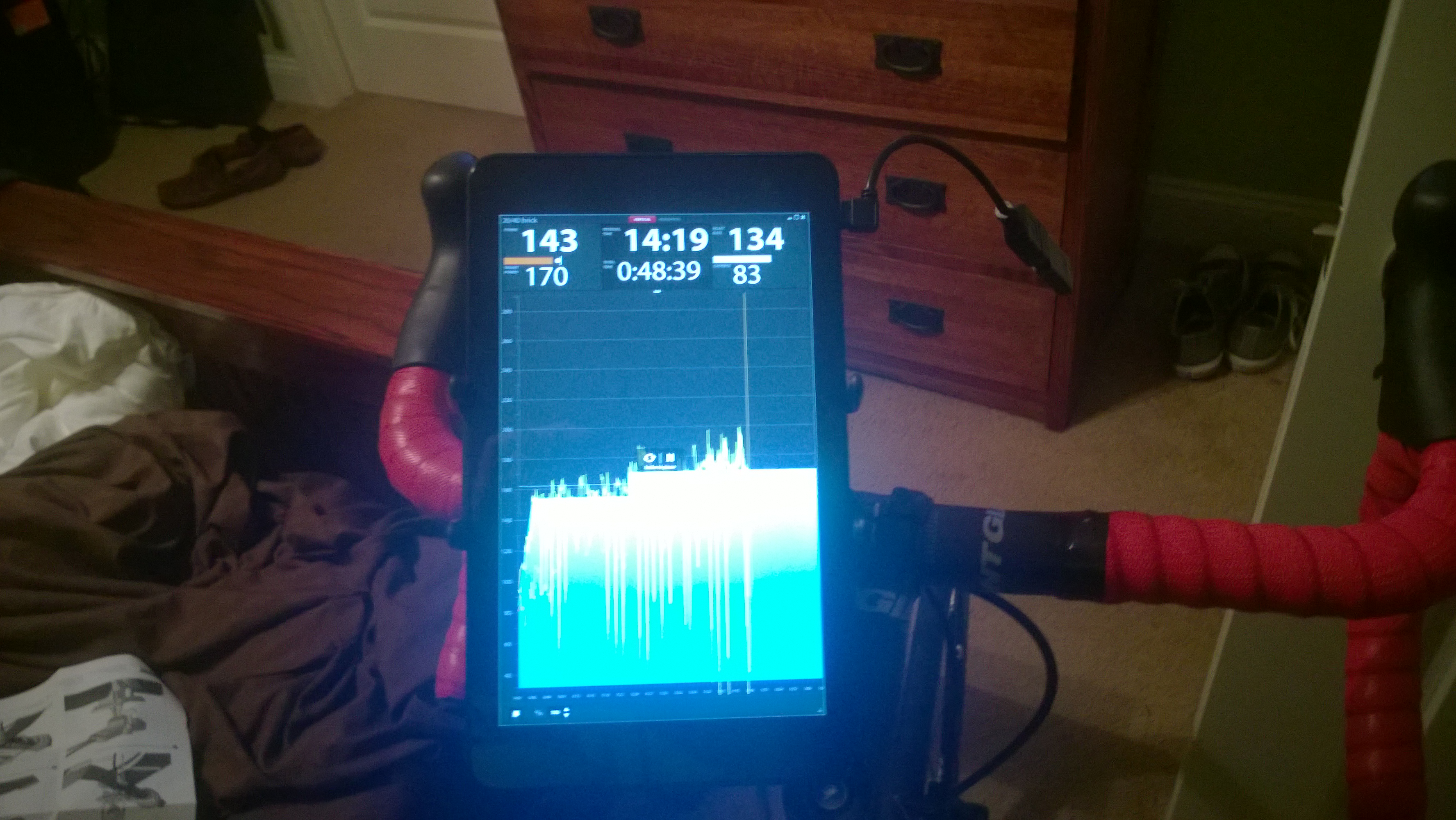
First, I needed a mount. A little poking around on Amazon yielded the Arkon SM632 for $18. It has four little prongs, two of which are spring-loaded, that hold the tablet or phone in place. There’s also a safety strap that goes across the device for extra security, but I didn’t bother with it. It installed easily in about 2 minutes and easily held the Venue 8 Pro. So far it seems quite sturdy, but I’m not about to ride on the road with a 7″ tablet on my handlebars.

The Venue Pro 8 has a single micro-USB port, so I needed an adapter (and had been meaning to buy one anyway). For $7, Amazon was happy to sell me a two-pack of USB On-The-Go (OTG) adapters.

The hardest part of the install turned out to be getting TrainerRoad set up. It installed easily but I had to tell it to use the virtual power feature, which required me to pick the trainer I use from a drop-down list. It is impossible to do this using the on-screen keyboard (since it doesn’t have up/down arrow keys) and there’s no way to scroll. I ended up plugging a mouse into the USB adapter and that did the trick.

The picture below shows what I ended up with; you can see the USB adapter and ANT+ stick just to the right of the tablet screen. Works like a champ!

TrainerRoad on the Dell Venue 8 Pro

TrainerRoad on the Dell Venue 8 Pro


2 Comments

Filed under Fitness

Training Tuesday: half-marathon now, triathlon soon

Time for a progress check-in on my training plans.

First, CHP. I am still delighted with the coaching I’m getting from Alex and the accomplishments and support of my fellow athletes is very motivating. For example, Dani Overcash, a 123lb woman, just set a new US record for deadlifting 402lbs at the RUM powerlifting meet this weekend. It is really cool to look in the FB group and see how many people are setting PRs, winning competitions (in powerlifting, strongman, Brazilian jiu-jitsu, and triathlon, among other sports), and generally being badasses.

Second, I started the Fleet Feet half-marathon program a few weeks ago. The program is pretty typical of half-marathon training programs: one long, slowish run on weekends, speed work one day a week, and a couple of shorter tempo runs. There are a few people in the program I know from the local running / triathlon community, which is fun. The long runs are Saturday mornings at 6am, which I semi-resent since that would otherwise be one of the few days when I don’t get up early. The program overall has a different vibe from TRI101, too, in part because of the different mix of coaches, and there have been a few hiccups with organization and logistics, but I am enjoying it and it should be good preparation for the Bridge Street half-marathon.

Third, I signed up for my first two triathlons of the season: the New Orleans Sprint on March 29 and the Lake Pflugerville Sprint in late June. There will undoubtedly be others in between (including the Issaquah Sprint, I hope!) Signing up was sort of a forcing function; I have been doing mostly weights and running, with occasional rides on the trainer, but I knew it was about time to switch to a more tri-focused regimen. I told Alex Sunday that I’d signed up and he immediately scheduled me for a brick Monday– and tomorrow I swim. Time to get back to it!

Fourth, I’m still debating which of the two local Olympic-distance training programs to sign up for. Note that I’m not debating whether or not I want a local group program. I do, because I like the energy and social connection of training with others. Fleet Feet is doing their TRI201 program, which I expect to be just like TRI101 with different distances, and local tri legend Rick Greif is doing his own program. Rick’s program is more expensive but includes some extras (including race registration for Renaissance Man), so I am leaning towards that.

I have a bunch more posts that I need to write, including an explanation of the setup I ended up with for bike training and a race report for the most excellent Tick Ridge Trek trail 10K I ran this past weekend, but this’ll do for now. See you on the road (or in the pool, or on the trail, or maybe at the pasta buffet!)

2 Comments

Filed under Fitness

Getting started with indoor bike training

A coworker was asking me about indoor cycling, so I took a few minutes to put together some notes on the configuration I use. He wanted a basic setup that would let him train indoors and minimize time spent away from his family. Here’s what I told him.

First, you should know that you can train in two ways: 

  • Structured workouts that target a particular power level (your functional threshold power, or FTP). An example workout is here. For example, you might ride a warmup for 10min at 60% of your FTP, then do interval sets of 80-115% FTP, then a cooldown.
  • Workouts where you ride for a set distance or duration while keeping your heart rate and/or pedal cadence in a certain range. These are akin to what you might do in a spin class, although a good instructor will provide a much more structured experience with intervals.

Both of these depend on having a way for something to measure how fast the pedals are going (cadence) and, optionally, your heart rate. Structured power-based workouts require you to have some way to either measure or estimate how much power you’re putting on the pedals.

Assuming you want to spend as little as possible, here’s what you need to get started with bike trainer workouts:

  1. A bike trainer. This DC Rainmaker article is the canonical list of recommendations for every price range. I got one of the Performance Bike TravelTrac units for about $100. I had borrowed a Kinetic Road Machine and loved it; it is much smoother than the TravelTrac but also costs 2x as much. 
  2. Speed and cadence sensors for your bike. There are two sensor protocols: ANT+ and Bluetooth Low Energy. You may be able to use BLE sensors with your phone and selected software, and it might work with your laptop, depending on what kind of gear you have. ANT+ is much more widely used for these sensors. I have a Wahoo ANT+ speed/cadence combo sensor but Garmin and several other companies make them. (Ignore the price at that link; sensors cost from $35-75 depending on brand).
  3. If you want structured workouts, TrainerRoad or some other training software. TR is $10/month, has a full money-back guarantee, and is very well worth it. TR will calculate what they call “virtual power” based on your pedal cadence, wheel speed, and the type of trainer you have. You will also need an ANT+ USB stick for your laptop so the TrainerRoad app can see your cadence and heart rate data. I use a $17 one from Amazon.
  4. If you want cadence / HR-based workouts, you need some way to see what your cadence and/or heart rate are. You can use a phone app for iOS or Android such as Strava or Wahoo Fit, the TrainerRoad app if you’ve subscribed, or a bike computer or watch that speaks ANT+. Beware that not every ANT+ device can display all types of sensors. For example, the Garmin Forerunner 15 running watch will display ANT+ heart rate data but ignores cycling sensors because it’s a running-only watch.
  5. If you want to gather heart rate data, you’ll need a heart rate monitor. I use the Scosche RHYTHM+ because a) it’s an arm/wrist strap and not a chest strap and b) it can transmit both BLE and ANT+.

There are lots of other ways to spend money on this stuff: there are computer-controlled trainers that adjust the resistance to give you realistic uphill and downhill rides, power meters that measure your power using strain gauges, bike computers that display your cadence, speed, etc. on a handlebar-mounted unit, and so on. But with the basic stuff above (which I’d estimate will cost less than $200 all in) you can get a terrific training experience without leaving your house.

Leave a comment

Filed under Fitness

Universal version of Outlook coming to your phone

Big news from today’s Windows 10 announcement: Microsoft will be shipping a “universal” version of Outlook that works on Windows tablets, phones, and PCs. This is a really interesting move, and not something I expected based on the existence of OWA for Devices (MOWA) on iOS and Android. The universal Outlook uses the universal version of Word as its editing engine, a huge plus because it delivers all the rich formatting tools available on Windows PCs (and which are still, sadly, missing from Mac Outlook, hint hint), and during the demo, Joe Belfiore showed a fluid touch-based interface that nonetheless preserved much of the look and feel of Outlook and OWA.

This announcement raises a lot of interesting questions, though. A partial list, just off the top of my head… (and a disclaimer: I haven’t seen any preview versions of Office 16 so perhaps these are naive questions that have all been well dealt with in the code)

  • Is this new version of Outlook a replacement for, or a complement to, the existing rich Outlook client? In other words, will it be able to do everything that I can do with Outlook 2013 on a Surface Pro 3? If not, what will they leave out?
  • Will this app replace the native WP calendar and contacts app? I’d guess not, given that the People app got a lot of play in today’s announcement.
  • Outlook’s resource requirements would seem to be a poor fit for phones and low-end tablets. I’d imagine that we’ll have sync controls similar to what exist on WP8.1 to allow users to sync a certain amount, but not necessarily all, of their mail, but it’s going to take a lot of optimization to provide acceptable performance on these devices.
  • Will this version of Outlook support on-premises servers? If so, that means it probably won’t rely on MAPI over HTTPS, which isn’t widely deployed. But it’s hard to imagine Outlook built completely on Exchange Web Services.
  • Will the universal Outlook team match the slow release cadence of desktop Office or the faster cadence of, say, the Lync mobile clients? One of the nicest features of OWA for Devices is that new OWA/Office 365 features (such as Clutter and the People view) just automatically show up in MOWA because it’s essentially a container for OWA views. How will the universal Outlook team bake in support for new features as Exchange and Office 365 ship them?
  • Will Exchange ActiveSync-specific features (especially remote device wipe) be included in this version of Outlook? They aren’t included in the existing Outlook family, of course.
    • If the answer is “no, but you can use InTune or Office 365 MDM”, that’s going to displease a lot of existing users. On the other hand, you can’t remotely wipe a desktop Office installation, something which has led several of my customers to block Outlook Anywhere so that people can’t easily use Outlook from personal machines.
    • If the answer is “yes”, then it will be fascinating to see how Outlook interacts with native data such as contacts stored on the device.
  • What does this mean for OWA for Devices? I’d guess that we won’t see Outlook for iOS and Android, but I wouldn’t necessarily rule it out. Maybe we’re headed back to the days of yore, where the premium clients run on Microsoft operating systems, with a sort of best-effort client set for competitors.
  • Is this the logical vehicle for incorporating the technology Microsoft acquired from Acompli? Or is that being baked in somewhere else?
  • When can I get a Surface Hub?

Given the upcoming availability of previews for Windows 10 for phones, I suppose we’ll get the answers to these questions soon.


2 Comments

Filed under UC&C

Training Tuesday: a few odds and ends

No time for a real post this week, so instead you get the dreaded random-list-of-bullets…

  • I’m still loving the Garmin 920xt. After teaching it about my phone’s tethered wifi network, I can now upload workouts from wherever I happen to be, which is handy when I’m on the road. The ability to set high/low alerts for pace and heart rate is very useful too.
  • I’ve been working with Alex Viada and his posse at Complete Human Performance for about six weeks now and I am already seeing some differences that I really like. I thrive on structure so having a training plan to follow works really well for me: I just show up, do whatever workout I’m assigned according to my TrainingPeaks calendar, and call it good.
  • The other day I deadlifted 315 lbs. While this is a small amount in the grand scheme of the powerlifting universe, it was a huge milestone for me. The bar actually bent when I lifted the weight. I had a huge ear-to-ear grin after completing the lift, and it inspired my 13-year-old (who was trying to reverse-psych me before the lift by saying “I don’t think you can do it, Dad”) to hit 135 x 5 for his own deadlift PR. Then I followed that up by setting a new bench PR of 135×2. Headed in the right direction!
  • Last night I had a 45-minute run where my target was to keep my heart rate in zone 2. I set a high/low alert on my watch and kept it right around 150 for a steady 45 minutes without stopping. If you had told me a year ago that I could run 4.5 miles without stopping I would’ve laughed in your face.
  • My Z2 pace is about 10:00/mi, while my flat-out race pace is about 8:30/mi for 5Ks. I need to do some more 10K distances to see what feels good at that distance; I’ll get the opportunity when I start my half-marathon training in a few weeks. My tentative goal for my first half is to get it under 2:15.
  • I need to spend more time in the pool. I always say that, and yet I rarely do it.
  • Working in an office has made it harder for me to consistently eat well. Since we have a full kitchen, this is more of an excuse than an actual problem; I can cook proteins, mix shakes, and so on at work just like I can at home, assuming a) I remember to bring the ingredients and b) my coworkers don’t eat them.
  • Is it triathlon season yet?

Leave a comment

Filed under Fitness

Microsoft sneaks out Mac Outlook update

Good news: Microsoft just issued an updated version of Outlook for Mac. (I guess that’s the official name, as opposed to the older Outlook 2011). The list of fixes is pretty nondescript: you can change calendar colors, add alt-text to images, and use custom AD RMS templates. I suspect most of the effort for this release was actually focused on the “Top crashes fixed” item in the KB article.

Bad news: you have to manually download it from the Office 365 portal. The AutoUpdate mechanism shipped with Office 2011 doesn’t yet know how to handle updates for Outlook for Mac. I suppose Microsoft could either update the Office 2011 AU mechanism or ship a new one as part of a future Outlook update; presumably the latter choice would actually deliver the Office 2015 update mechanism, since there’s undoubtedly going to be one.

The real news here is how quickly Microsoft released this update. While this is only one release, it’s an excellent sign that we got it quickly, and it makes me hopeful that we’ll see a steady stream of updates and fixes for the Mac Office apps in the future— with a cadence more akin to the Lync Mobile clients releases than the glacial pace of past Mac Office updates.

1 Comment

Filed under OS X, UC&C

Training Tuesday: Upgrading to the Garmin Forerunner 920xt

When I saw that Garmin had a new triathlon watch on the way that included an SDK, I thought “hey, that might make a neat upgrade” and ordered one. Unfortunately, production delays dragged the release date out, so I ended up canceling my original order and reordering. I got the new watch about two weeks ago and have been putting it through its paces since. I’ve used it on the bike indoors and out, for outdoor runs, and while weightlifting. It’s also an activity tracker that tracks steps and sleep and uses that data to estimate calorie burn. Here are a few of my thoughts based on my experience so far.

First, IMHO it is ugly compared to the Suunto. That’s partly a result of the white/red color scheme but also because there are lots of little 1970s-style touches (the GARMIN logo, the little red pinstripes around the bezel) that don’t need to be there. It is substantially smaller than the Garmin 910t and about the same thickness as the Suunto. The band is comfortable enough for daily wear.

Paul robichaux net 20141214 001

Side by side, I prefer the appearance of the Suunto.

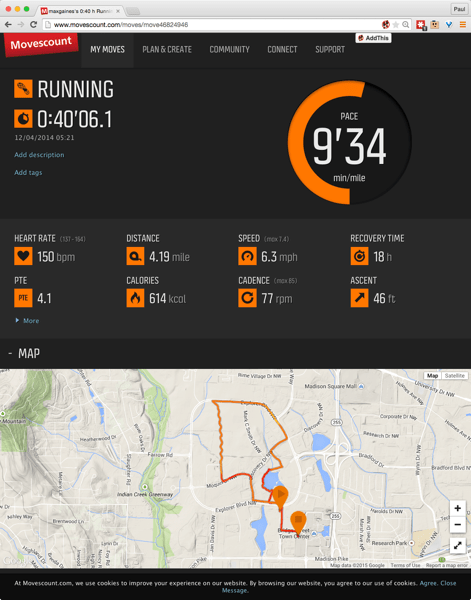
Setup was very straightforward. I signed up for a Garmin Connect account, plugged in the watch, and that was about it. Suunto requires that you set up most aspects of its watches (including which activity types will be available on the watch) using their web site. This is very flexible, and generally easier than punching buttons on the watch, but it means that you can’t customize anything on the watch itself— a drawback if you get to a race and notice “oops, I forgot to enable open water swim mode” (which I’ve done!)

As typical, the first thing I did with the watch was play with all the settings. For example, at first I thought I’d want the “auto scroll” option on so that the watch would flip through all available data pages. It turns out that auto scroll means whenever I looked at the watch, it was likely to be showing me anything other than the data items I was most interested in at that point in time, so I turned it back off.

A few things I particularly liked:

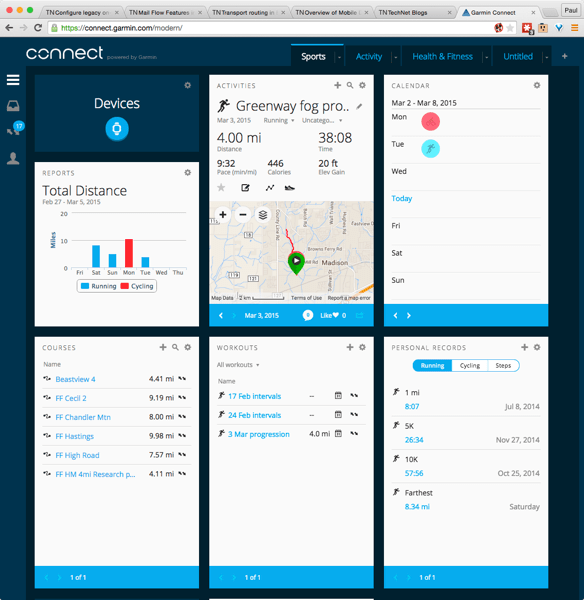
  • Garmin’s Connect web site is much more attractive and more useful than Suunto’s. I love seeing weather conditions recorded along with my workout. (Take a look at this workout as an example).
  • Being able to set a target pace, then have the watch buzz / beep any time I deviated from it, is a great help. I’m still not quite sure at what interval the watch checks pace.
  • Wireless sync via wifi is brilliant. I was on the street corner outside my house, walking back in, and the watch buzzed to tell me it had uploaded my workout.
  • It was trivial to pair the watch with my bike sensors, my HRM band, and the TrainerRelay feature in TrainerRoad.
  • GPS acquisition seems just as fast as the Ambit 2s, which is noteworthy for its fast sync.

The watch has a few drawbacks, too. I don’t have a phone that works with the 920xt’s Bluetooth features, which means I don’t get notifications on my wrist, can’t use live tracking, and so on. The chances that Garmin will support Windows Phone are just about nil, so I have to decide if I am willing to switch to a supported platform if I want to have these features. The jury is still out; there are lots of things I prefer about WP compared to iOS, and I am loath to give them up just to have wrist notifications. I suppose that’s not the watch’s fault though, especially since the Ambit 2s lacks those features altogether.

Another annoyance: you can’t customize the data fields in the same way that you can with the Suunto. There I was able to set up a custom screen that had exactly the data fields I wanted, no more and no less. On the 920xt it looks like you can enable individual data pages, but you can’t customize the fields that appear in those pages. For example, when cycling I want a page that shows current speed, current cadence, and total distance. The 920xt has all that data, but not in a single page.

There are some things I don’t understand about creating workouts in Garmin Connect and sending them to the watch, too. It looks like the workflow is to log in to GC, create the workout, then plug your watch in for USB sync. When I do this, sometimes I get the workout on the watch and sometimes I don’t. This may be a watch problem, a Mac sync connector problem, a GC problem, or some combination thereof. I haven’t done it enough yet to have a really solid repro case.

The social features of Garmin Connect are poor, too. In fairness they are no worse than Suunto’s, but compared to the features in Strava, MapMyRun, RunKeeper, and Fitocracy, they stink. It’s hard to find friends, to name just one flaw. I’d love to see them fix this in a near-term update.

A few tips for things that were not obvious to me at first:

  • You turn the backlight on by pressing the power button. By default, it shuts back off after 8 seconds. This is adjustable: go to Settings > System > Backlight and you can change the delay. The Ambit 2s had a lock button that you could use to lock the light on; there doesn’t seem to be an equivalent.
  • On the Suunto, you define a multisport activity on the web site, load it to the watch, and transition between activities. You can do that on the Garmin as well, but you can also just switch modes on the watch— so you can go from weightlifting to running to open water swim to cycling all within a single activity. The Garmin Connect web site still seems to have some issues dealing with multi-activity files, or it’s possible that I have something set up wrong.
  • The activity monitor knows when you’re moving your body, but it doesn’t know when you’re unable to move, e.g. sitting in a car in traffic, so it will buzz you anyway. Such is life.

Overall I’m delighted with the watch so far. Garmin has been the gold standard for multi-sport watches and I expect that, as I learn to use it, I’ll get more useful training data from it. The ability to easily do intervals and to track my pace are already making a different. Bring on race season!

14 Comments

Filed under Fitness

My first week with Office 365 Clutter

Immediately after Microsoft announced that Clutter was available, I enabled it in all my personal tenants and started training it. As you may recall, you can train Clutter in two ways: implicitly (as it sees how you interact with mail from particular senders, such as by ignoring it or deleting it without reading it) or explicitly (by moving messages into or out of the Clutter folder). Because I’m fairly impatient, I set about explicit training by moving messages to the Clutter folder. I’ve done this with all of the clients I use: Outlook for Mac, OWA, Outlook 2013, the iOS mail app, and Outlook Mobile. Whenever possible I move the message while leaving it unread, so as not to make Clutter think I’m interested.

The upshot: it works reasonably well, but it seems to have trouble learning about messages from some sources. For example, both Strava and Twitter alerts remain resolutely un-Cluttered even though I’ve been moving 100% of those messages, unread, to the folder. I think that’s because the message subject for these messages often changes to reflect the message contents (e.g. “@jaapwess retweeted a Tweet you were mentioned in!”) and that confuses the algorithm in some way. It may be that the algorithm used to categorize these messages needs more data to act on before it can decide. The downside of machine learning systems is that, as an end user, you often can’t see just what the machine has learned, only the actions it takes. In this regard, machine learning is somewhat like owning a cat. I can see that Clutter isn’t moving some messages I think it should, but I don’t have any way to see why, nor any way to effectively correct it. This reminds me of the good old days of training neural networks from HNC Software to do various interesting things and sometimes being bewildered by the resulting behavior.

One bit of good news: I have been very pleased to see no false positives; that is, Clutter has not taken any mail I wanted to read and treated it as clutter. If the price of zero false positives is that some real clutter isn’t treated as such, I’m OK with that.

The junk mail filtering infrastructure continues to catch some messages that might more properly be treated as clutter, e.g. the flood of marketing crap I get from GameStop. I don’t mind such messages being treated as junk, though.

One unexpected side effect is that I have been much more diligent than usual about unsubscribing from newsletters or marketing mails that I no longer care about. This has helped to cut the volume of clutter I have to deal with.

In closing, I note that no matter how many times I tell Clutter that notifications from Yammer should be treated as clutter, they keep going right into my Inbox. I suspect a conspiracy.

3 Comments

Filed under Office 365, UC&C

Why the Outlook for Mac folder pane changes colors

I mentioned in my review of the new Outlook for Mac client that the background of the folder list seemed to randomly change colors:

It may also be a feature that there is a color gradient fill in the folder list. At first I thought the color was the same as the color of the category of my current calendar appointment, but after changing all the category colors, waiting for sync, and quitting and relaunching Outlook, the color didn’t change, so I’m not sure what Microsoft had in mind here, and there doesn’t seem to be a way to turn it off.

Thanks to the most excellent Bill Smith, long-time Mac Office MVP, now I know the answer:

You’re seeing translucency in the navigation pane. So long as you have a window or other white object behind Outlook you’ll see a whitish background, but arrange Outlook over your Desktop picture and you’ll see those colors peeking through it. Choose Outlook menu > Hide Others to quickly show Outlook over your Desktop.

Sure enough, that explains it. I use SatelliteEyes to update my desktop background, and as I move around (and thus get new satellite maps), or as change the Z order of other open windows, voilà color changes. I normally don’t mind window translucency, but I don’t care for the combination of OS X Yosemite and this effect. Looks like I’m stuck with it, though.

8 Comments

Filed under OS X, UC&C

The difference between supportability and patching

I’m at the annual MVP Summit this week, and everything we hear and see is pretty much NDA (except for pictures of Flat Tony). However, we just had a really interesting discussion that I think is safe to abstract here.

A couple years ago I wrote a post about what it means to be supported or unsupported. What I wrote then still stands: when Microsoft says something is unsupported, there can be multiple reasons for that label, and you do whatever-it-is at your own risk.

Microsoft’s support policy for Exchange 2013 can be summed up as “N-1”: when they release a new cumulative update (CU) or service pack, that version and the previous version are considered to be supported. So, in the fullness of time, when we get Exchange 2013 CU7, then CU6 and CU7 will be the officially supported versions.

It’s very clear that there’s a lot of confusion about what “supported” means in this context. Microsoft product support will always support you if you call for help with a product that’s within its lifecycle window. Call them today and ask how to configure Exchange ActiveSync on Exchange 2010 RU2, they’ll help you. Call to ask about an issue you’re seeing with DAG failover in Exchange 2013 CU2, they’ll help you. Call for help with Exchange 2003, and they may even help you on a best-effort basis.

What they won’t do is create fixes for bugs or problems in unsupported versions.

If you call them and say “hey, I’m having this problem with Exchange 2013 SP1,” they will help you troubleshoot it. If it’s a known problem, they may tell you “update to CU5 or later”– but Microsoft will not create a hotfix or IU that fixes that problem in SP1, or any other older version that’s outside that N-1 boundary.

So: help always, bug fixes only within the support boundary. Tell your friends.


1 Comment

Filed under Office 365, UC&C

Microsoft announces data loss prevention, mobile device management for Office 365

Microsoft made a slew of Office 365 announcements at TechEd Europe this week. Taken collectively, they’re clear evidence of how Microsoft is executing their strategy of cross-linking capabilities across Windows, the Office suite, and Office 365.

Let’s start with data loss prevention (DLP), a feature first introduced in Exchange 2013. (Side note: I love it that yet another marquee feature in Office 365 was first shipped as part of Exchange.) The idea behind DLP is that you can have an automated system that will detect when users send out sensitive information (for certain selected values of “sensitive”) and take appropriate action, ranging from warning the user through a Policy Tip to journaling the message to notifying a person or group to blocking the message. DLP shipped with a template engine that allows Microsoft and its partners to build templates for different policies, along with a set of templates for common policies such as US HIPAA and PCI. However, Exchange 2013 DLP suffered from some limitations, chiefly that it only worked with messages sent through Exchange. Users only get Policy Tip warnings in OWA 2013 and Outlook 2013, and the template system seems primarily intended for use by a few specialized partners and not the general population.

Microsoft is addressing these problems by extending DLP into SharePoint Online and OneDrive for Business. While they haven’t discussed the specifics of how this will work, it seems reasonable that both SharePoint and ODB will consume the same policy templates used in Exchange, so that you can apply a consistent set of policies across the three products. Conspicuously absent from the announcement was any mention of bringing this capability to on-prem SharePoint. Maybe that was just an oversight.

The OneDrive for Business capability will be of huge interest to several of my large customers. Microsoft’s messaging around large, low-cost personal storage for business users is getting a lot of traction, with both users and enterprises eager to take advantage of it, but organizations have a reasonable concern that users will, accidentally or on purpose, put stuff in their ODB libraries that they shouldn’t. Assuming that you can define a DLP policy that covers what you don’t want stored in ODB, having this enforcement mechanism could potentially be very valuable.

In addition to these DLP extensions, Microsoft is giving Office 365 DLP the ability to recognize and act on tags created in the Windows Server file classification infrastructure (FCI). With this support, the automated metadata tags generated by FCI can be recognized by Exchange Online, SharePoint Online, and OneDrive for Business—so if you have, say, an Excel spreadsheet that’s classified as protected health information (PHI), the DLP infrastructure will recognize and treat it as such. I don’t have a good feel for how pervasive FCI is in the enterprise, since I don’t normally deal with file/print deployments, but I suspect that this is a nice 2-for-1 play for Microsoft: they can sell the benefits of FCI to cloud customers and sell the benefits of DLP that’s driven by FCI to entrenched on-prem customers.

Another major DLP improvement is coming in Office: Word, PowerPoint, and Excel will get support for Policy Tips. While it would be technically possible to roll this out into Office 2013, it wouldn’t surprise me at all to see this offered as a feature only in Office 16.

I’ll have a lot more to say about the details of these features once Microsoft releases more public details. While I’ll look forward to picking the collective brains of the Office 365 PM team at the MVP Summit, I don’t expect them to share any public details beyond what they’re showing in Barcelona. In the meantime, though, Microsoft is clearly trying to reinforce the ties between their core Office and Windows Server customers and Office 365, while at the same time providing some more tasty cloud-only features in an attempt to entice customers into drinking the 365 Kool-aid.

For another day, a more detailed analysis of Microsoft’s announcement that mobile device management (MDM) capabilities are being added to almost all of the existing Office 365 plans.

3 Comments

Filed under Office 365, UC&C

Developing apps for the Garmin ConnectIQ SDK

Early on this triathlon season, I bought a Suunto Ambit 2s. I loved the idea of having accurate workout data for my training, plus more accurate time/distance data for my races, and the Suunto has delivered. But it’s missing a few things: its support for interval workouts is poor, and the Movescount website is less reliable than I’d like. Luckily Suunto added export to Strava, but you still have to use their computer-based app to transfer workouts from the watch to the computer to the Movescount site, so when the site’s down you can’t see your workout data. (There are also various website bugs, including one in computing swim distance that means that the results on the website don’t match the results on the watch, but I digress). Having said all that, I was planning on sticking with the Suunto because I like the industrial design; it’s comfortable to wear, looks good, and has all the basic functionality I need.

Then I read this: Garmin announces ability to develop apps on wearables, with Connect IQ.

Coupled with my native lust for all shiny gadget things, the availability of the SDK opened a whole range of possibilities, not only for apps I could get for the watch but for apps I could write. I immediately started pondering what kinds of useful apps I could build and came up with one that I thought would be very useful: a flight timer. There are at least two different flight times that I need to log for every flight: how long the propeller was turning (because that drives how much money I put into our engine reserve fund) and how long I was actually in the air (which is what I actually log as flight time).

The GPS in 706 can automatically calculate flight time from takeoff to touchdown… provided you remember to look at it after landing and before turning off the avionics master switch. We also have a Hobbs meter that measures the time when the propeller’s actually turning. However, an app that automatically records time in flight, along with the origin and destination airports, would be useful. CloudAhoy does something similar, based on ForeFlight track data (and for all I know, ForeFlight can do this already). However, a timer that’s not tied to the aircraft would have the advantage of not losing its data when you turn off the airplane, and not being tied to a phone, external GPS, or iPad greatly reduces the risk of losing data due to battery or device failures.

So, I ordered a Garmin 920XT and downloaded the Garmin SDK. On first inspection, it looks like the SDK and development model are both pretty tractable for what I want to do. I’ll be blogging about my development efforts as they progress. For now, if I can get basic logging to work in the device simulator, I’ll be happy. There are a few features I’d like to have in the app to make it useful: it should automatically log flight time from takeoff to touchdown, geocode the origin and destination points so that the log file reflects airports and not just GPS points, and provide a timer function for things such as switching fuel tanks in flight. If I can extend that to include automatically logging flights into Safelog, that’d be even better but that might be some time away.

The 920XT itself will be a nice upgrade from the Suunto, which I am going to loan to my pal Jay for use in his training, but it won’t ship until sometime in November, so I’ll be running on the simulator for a while yet (and using the Suunto to log workouts, too!)

The SDK includes a comprehensive set of API docs, the device simulator, an Eclipse plugin that runs the command-line compiler, and assorted sample apps. I’ll have ore to say about it once I get my environment set up and running and start playing with the samples. Garmin’s clearly thinking about this the right way, though; in addition to their own developer forum, they are actively encouraging the use of StackOverflow.

Stay tuned for updates!

3 Comments

Filed under aviation, Fitness

Disney and Universal 2014 wrapup

A few more-or-less random thoughts about our recent trip to Disney World and Universal Studios Florida:

  • Universal is a see-it-once park, I think. We enjoyed it but there was nothing so compelling that I think we’d want to go back again in five years. On the other hand, all four of us had specific things at Disney that we looked forward to doing (among them: turkey legs, the Winnie the Pooh ride, Tower of Terror, and Space Mountain).
  • Having said that, the Harry Potter attractions are superbly done: decoration, character acting, costuming, and all the little touches come together to provide a very immersive experience. Just don’t expect to be able to drink a whole mug of butterbeer. (And don’t be surprised if the Forbidden Adventure ride leaves you nauseated for a couple of hours afterwards.) Getting early access by virtue of staying in a Universal property was well worth it.
  • We didn’t buy, nor did we miss, the front-of-the-line ride access benefit that Universal sells for $60+ per person, per day.
  • Disney’s MagicBands system works extremely well and made paying for things much easier– which, I suppose, is the point.
  • The FastPass+ system takes a little getting used to because you can get multiple passes at once, but there are limits on which rides you can stack passes for. Read up on it before you go.
  • We stayed at two “value” hotels: Universal’s Cabana Bay and Disney’s All-Star Music Resort. Both had nicely equipped, clean “family suite” rooms. Both claimed to sleep six: Universal provided two double beds and a twin pull-out sofa, while Disney provided a queen, a twin sofabed, and two single fold-out sleep chairs: not ideal for six-foot teenagers, but workable.
  • Disney’s on-property wifi was great at the parks, as was Universal’s. However, the Disney in-room wifi was unusuable– worse even than the worst of the Microsoft conference hotels I’ve had to use in the past.
  • EPCOT’s International Food and Wine Festival was going on, so we got some primo foods when we ate dinner there. I’d like to do the festival again, but with more time to savor the food.
  • Tom, Matt, and I all ran into friends at the parks. It’s a small world indeed.
  • We didn’t rent a car, so we used Uber for the move from the Kissimmee airport to Universal, then a cab from Universal to Disney, then Uber again. Orlando’s taxis are about a million percent cleaner than in most other cities, but Uber was cheaper and faster.

Overall, a successful trip (good flight, too!) but boy, am I glad to be home!


1 Comment

Filed under aviation, General Stuff, Travel

SharePoint task list shows “read only” when opened in Project 2013

SharePoint Online has a nifty set of features for managing project tasks, but I don’t like its web interface. I prefer Microsoft Project (which makes me a bit of a heretic, but there you have it). SharePoint has a button that will take the current task list and give it to you as an .mpp file, then open it in Project so you can edit it. Sadly, this button only works in IE for Windows; it doesn’t work on my machine when I use Chrome, and of course since there’s no Project version for Mac OS X, it doesn’t work there either.

Anyway, I’ve been using this button a lot, but the other day it just quit working. I’d click the button, the .mpp would open, but Project would see it as read-only, so I couldn’t save edits back to the SharePoint site. I did some digging and found that other users had reported success opening the .mpp directly from the “recently used” file list, but that didn’t work for me. So I posted this thread. Meanwhile, as I waited for an answer, I tried a variety of things, none of which worked. Then, in a completely unrelated set of operations, I signed out of Office 365, changed my account password, and signed back in… and then it worked. Perhaps this fix will prove useful for future generations.

3 Comments

Filed under Office 365