Category Archives: Office 365

Content related to Office 365 in all its glory

Fixing “Cannot find registrar pool” error for sipfed.online.lync.com

I was recently setting up hybrid Lync Skype for Business for a customer. This is more properly known as “split-domain” configuration because you share a single SIP namespace across both the on-premises and cloud portions of the infrastructure.

If you’re not familiar with the process, it goes like this:

  1. Set up AD FS or whatever other identity federation solution you like.
  2. Configure the service to allow federation.
  3. Configure the on-premises Lync/SfB servers to allow federation.
  4. Turn on federation.
  5. Enable your tenant for split-domain operations with Set-CsTenantFederationConfiguration.
  6. Start moving users.

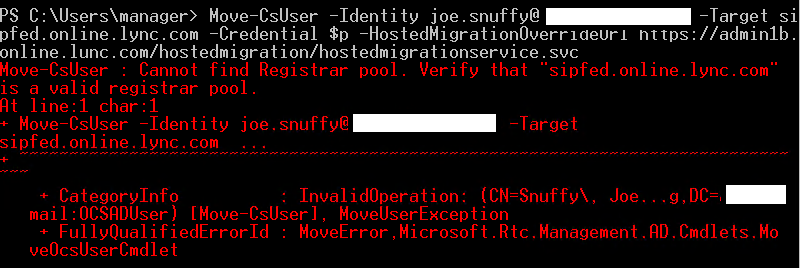
Adam Jacobs’ summary is worth reading if you haven’t seen this before, but even without reading it, it seems straightforward enough, right? I found that when I got to step 6 I got a vexing error: “Cannot find Registrar pool. Verify that ‘sipfed.online.lync.com’ is a valid registrar pool.”
sipfederr

I was 100% sure that the registrar pool name was correct and that it existed, so why couldn’t the Move-CsUser cmdlet find it? I spent some fruitless time binging for a solution (note: this is not the same as “binging on beer” or “binging on carbs before my race”); the few hits I found all suggested ensuring that you’d connected to the service with Import-PSSession, which is, as suggestions go, right up there with “make sure it’s plugged in.”

After some experimentation, I finally figured out that step 3 above hadn’t been performed completely; when I ran Get-CsHostingProvider, the EnableSharedAddressSpace and HostsOcsUsers parameters were both set to “false”. I reset them (and the AutodiscoverUrl parameter, also required), and that solved the problem. It’s not clear to me why anyone at Microsoft thought “cannot find registrar pool” would be an appropriate error for this condition; there are distinct error messages for most other problems that might occur (such as trying to move users to the wrong pool) but not here.

Perhaps this breadcrumb will help some future admin who gets the error, or maybe Microsoft will fix it…

6 Comments

Filed under Office 365, UC&C

Fixing SharePoint Online OneNote “something went wrong” errors

I recently ran into a problem with a SharePoint Online site that had previously been created on BPOS and moved around through various iterations of Office 365. None of the site users had ever used the OneNote notebook associated with the site, but the link was present in the side navigation bar. When I tried to access it, I got the infamous “sorry, but something went wrong” error page. (For another day: discuss the Fisher-Price-ization of service error messages; the low information content doesn’t scare end users but makes it impossible to troubleshoot problems.)

A little binging turned up a plausible solution: “SharePoint 2013 OneNote Notebook something went wrong error“. I was a little leery of turning off the feature for fear that it wouldn’t turn back on. However, I took the plunge. After disabling the feature and re-enabling it, I was able to open the OneNote Online notebook, but I wasn’t able to use the “open in OneNote” link until I added some content in OneNote Online. All’s well that ends well. This may not be the only solution for this problem, but it has a 100% success rate for me so far.

1 Comment

Filed under Office 365, UC&C

Preparing for Ignite

I’m heads-down working on my materials for the upcoming Microsoft Ignite conference. This year, I have three sessions:

  • MVPs Unplugged: Real-World Microsoft Exchange Server Designs and Deployments. This is a panel with Jeff Guillet, Nic Blank, and Sigi Jagott, so I am really looking forward to it. I love panels in general, and my co-presenters are incredibly knowledgeable about the ins and outs of large and small Exchange deployments.
  • Exchange Online Archiving: Notes from the Field. Archiving is one of those topics that isn’t interesting to everyone— but for people who are interested, they tend to be very interested. In this session, I’ll be talking about various aspects of EOA, including what it is, how it works, and how to efficiently move to it.
  • Servicing Microsoft Exchange Server: Update Your Knowledge: this is a joint effort between me and Microsoft’s Brent Alinger. As you may know, he is Mr. Exchange Servicing. I’m really excited to have the chance to be onstage with him. He has some very interesting (dare I say “provocative”) things to say. I consistently find that people misunderstand (or maybe under-understand) how Exchange servicing works and why Microsoft does things the way they do, and I think this session will help shine a brilliant beam of knowledge down from the mothership.

As always, Microsoft has deployed a whole behind-the-scenes infrastructure for managing all this stuff; this year, the system allows attendees to register their session preferences, and we see projected attendee numbers in the speaker portal. When I check these sessions in the speaker portal, all 3 of them are shown as having more enrollees than the currently booked rooms can support— that’s an excellent sign.

Of course, I have to point out that the session schedule is still not 100% set in stone, and sessions may change both times and locations. That’s a good thing, as right now my EOA session is up against Julia White’s keynote, generating the following exchange:

Google ChromeScreenSnapz013

(Just for the record, Julia, you are more than welcome in my sessions, and I promise to come up with better jokes before you arrive!)

In addition to our assigned sessions, Microsoft has asked each speaker to conduct peer review of other presentations. In addition to the sessions I’m presenting, I’m peer-reviewing sessions on Clutter, Office 365 Groups, and SharePoint enterprise search (pretty sure this last assignment was an accident). We’re also all supposed to man the show floor Office 365 booth, plus there are various side events to plan and RSVP for. In particular, if you haven’t yet requested an invitation to the Scheduled Maintenance party, you’d better act quickly; I hear it will introduce a new level of awesomeness.

Apart from my sessions, the only logistical item I have to complete is to book my flights; until the session schedule is finalized, I can’t. While I’d much prefer to fly myself, Microsoft only covers commercial airfare for speakers. I might fly myself anyway, though!

The workload is ramping up quickly as we get closer to the event, but it should pay off with some excellent sessions. I’m looking forward to Ignite– drop by and say hello if you’re there!

Leave a comment

Filed under Office 365, UC&C

License usage reporting in Office 365, part 2

If you’ve been wondering where part 2 of my series on reporting in Office 365 was, wonder no more; it just went live this morning.

Leave a comment

Filed under Office 365, UC&C

Microsoft rolls out Clutter admin improvements

Back in November, I wrote about my early experience with the Office 365 Clutter feature. I’ve been using it on and off– mostly off, due to a rare bug that surfaced because my mailbox is actually hosted on a portion of the Office 365 cloud that descends from the old Exchange Labs “friends and family” tenant. The bug kept Clutter from correctly moving clutter messages automatically; once it was fixed things returned to normal after I re-enabled the Clutter feature, and I’ve been happily using it since.

One of the big advantages of Office 365 is that the service team can develop and release new features much faster than they can for on-premises services. Sure enough, Microsoft today announced three new features for Clutter.

The biggest of these is the ability to create transport rules that flag messages, or senders, as exempt from Clutter processing. This is exactly the same thing as specifying safe senders for message hygiene filtering, although the implementation is a little different. You’ll create a transport rule that has the conditions and exceptions you want, but with an action that adds a header value of “ClutterBypassedByTransportRuleOverride: TRUE”, as described here. I have not personally had even a single false positive from Clutter since I’ve been testing it, and I haven’t seen any complaints about false positive problems from other users, MVPs, or customers. Having said that, Microsoft was smart to include a way to exempt certain messages from processing, as this will soothe some users and tenant administrators who are worried about the potential to have important messages be misdirected.

Second, the Clutter folder can now be managed by retention policies. This is an eminently logical thing to do, and it nicely highlights the flexibility of Exchange’s messaging records management system.

Rounding out the trio, you now have a very limited ability to customize the message that users see when they enable Clutter for their mailboxes: you can change the display name that the notification appears to be from, and you’ll soon be abe to change the logo. Frankly, this is weak sauce; there’s no way to customize the text of the notification, add custom URLs to it, or otherwise modify it in a useful way. Long-time Exchange administrators will recognize a familiar pattern exemplified by customizable delivery status notifications (DSNs), quota warning messages, and MailTips in previous versions of Exchange: first Microsoft delivered a useful feature with no customization capability, then they enabled limited customization, then (after prolonged complaining from customers) they broadened the range of things that could be customized. Let’s hope that pattern holds here.

There’s still one weak spot in the Clutter feature set: it still requires individual users to opt in (or out). While it’s true that users would likely be alarmed by the sudden forceful application or removal of the Clutter feature from their mailboxes, it’s also true that Office 365 as a whole needs to provide better controls for administrators to regulate which service features users have access to. I am hopeful that we’ll see better admin controls (and reporting) for this feature in the future.

While these improvements aren’t necessarily earth-shaking, they do add some welcome utility to what is already a valuable feature. Clutter is a great example of a feature that can make a measurable positive difference in users’ satisfaction with the service, and I look forward to more improvements in the feature.

1 Comment

Filed under Office 365, UC&C

License usage reporting in Office 365, part 1

On this blog, I write about whatever interests me. To the chagrin of some folks, this often includes aviation, fitness, and various complaints, but hey.. it could be worse. I save the really inane stuff for Twitter.

Besides the content I post here, though, I also blog at the Summit 7 Systems blog collective. Right now I’m publishing a series on reporting in Office 365. The first part of the series, on license usage reporting, is here, and the second part will be published shortly. In general, when I post content there that might be of interest to readers here, I’ll cross-post it with a short post like this one.

3 Comments

Filed under Office 365, UC&C

My first week with Office 365 Clutter

Immediately after Microsoft announced that Clutter was available, I enabled it in all my personal tenants and started training it. As you may recall, you can train Clutter in two ways: implicitly (as it sees how you interact with mail from particular senders, such as by ignoring it or deleting it without reading it) or explicitly (by moving messages into or out of the Clutter folder). Because I’m fairly impatient, I set about explicit training by moving messages to the Clutter folder. I’ve done this with all of the clients I use: Outlook for Mac, OWA, Outlook 2013, the iOS mail app, and Outlook Mobile. Whenever possible I move the message while leaving it unread, so as not to make Clutter think I’m interested.

The upshot: it works reasonably well, but it seems to have trouble learning about messages from some sources. For example, both Strava and Twitter alerts remain resolutely un-Cluttered even though I’ve been moving 100% of those messages, unread, to the folder. I think that’s because the message subject for these messages often changes to reflect the message contents (e.g. “@jaapwess retweeted a Tweet you were mentioned in!”) and that confuses the algorithm in some way. It may be that the algorithm used to categorize these messages needs more data to act on before it can decide. The downside of machine learning systems is that, as an end user, you often can’t see just what the machine has learned, only the actions it takes. In this regard, machine learning is somewhat like owning a cat. I can see that Clutter isn’t moving some messages I think it should, but I don’t have any way to see why, nor any way to effectively correct it. This reminds me of the good old days of training neural networks from HNC Software to do various interesting things and sometimes being bewildered by the resulting behavior.

One bit of good news: I have been very pleased to see no false positives; that is, Clutter has not taken any mail I wanted to read and treated it as clutter. If the price of zero false positives is that some real clutter isn’t treated as such, I’m OK with that.

The junk mail filtering infrastructure continues to catch some messages that might more properly be treated as clutter, e.g. the flood of marketing crap I get from GameStop. I don’t mind such messages being treated as junk, though.

One unexpected side effect is that I have been much more diligent than usual about unsubscribing from newsletters or marketing mails that I no longer care about. This has helped to cut the volume of clutter I have to deal with.

In closing, I note that no matter how many times I tell Clutter that notifications from Yammer should be treated as clutter, they keep going right into my Inbox. I suspect a conspiracy.

3 Comments

Filed under Office 365, UC&C

The difference between supportability and patching

I’m at the annual MVP Summit this week, and everything we hear and see is pretty much NDA (except for pictures of Flat Tony). However, we just had a really interesting discussion that I think is safe to abstract here.

A couple years ago I wrote a post about what it means to be supported or unsupported. What I wrote then still stands: when Microsoft says something is unsupported, there can be multiple reasons for that label, and you do whatever-it-is at your own risk.

Microsoft’s support policy for Exchange 2013 can be summed up as “N-1”: when they release a new cumulative update (CU) or service pack, that version and the previous version are considered to be supported. So, in the fullness of time, when we get Exchange 2013 CU7, then CU6 and CU7 will be the officially supported versions.

It’s very clear that there’s a lot of confusion about what “supported” means in this context. Microsoft product support will always support you if you call for help with a product that’s within its lifecycle window. Call them today and ask how to configure Exchange ActiveSync on Exchange 2010 RU2, they’ll help you. Call to ask about an issue you’re seeing with DAG failover in Exchange 2013 CU2, they’ll help you. Call for help with Exchange 2003, and they may even help you on a best-effort basis.

What they won’t do is create fixes for bugs or problems in unsupported versions.

If you call them and say “hey, I’m having this problem with Exchange 2013 SP1,” they will help you troubleshoot it. If it’s a known problem, they may tell you “update to CU5 or later”– but Microsoft will not create a hotfix or IU that fixes that problem in SP1, or any other older version that’s outside that N-1 boundary.

So: help always, bug fixes only within the support boundary. Tell your friends.


1 Comment

Filed under Office 365, UC&C

Microsoft announces data loss prevention, mobile device management for Office 365

Microsoft made a slew of Office 365 announcements at TechEd Europe this week. Taken collectively, they’re clear evidence of how Microsoft is executing their strategy of cross-linking capabilities across Windows, the Office suite, and Office 365.

Let’s start with data loss prevention (DLP), a feature first introduced in Exchange 2013. (Side note: I love it that yet another marquee feature in Office 365 was first shipped as part of Exchange.) The idea behind DLP is that you can have an automated system that will detect when users send out sensitive information (for certain selected values of “sensitive”) and take appropriate action, ranging from warning the user through a Policy Tip to journaling the message to notifying a person or group to blocking the message. DLP shipped with a template engine that allows Microsoft and its partners to build templates for different policies, along with a set of templates for common policies such as US HIPAA and PCI. However, Exchange 2013 DLP suffered from some limitations, chiefly that it only worked with messages sent through Exchange. Users only get Policy Tip warnings in OWA 2013 and Outlook 2013, and the template system seems primarily intended for use by a few specialized partners and not the general population.

Microsoft is addressing these problems by extending DLP into SharePoint Online and OneDrive for Business. While they haven’t discussed the specifics of how this will work, it seems reasonable that both SharePoint and ODB will consume the same policy templates used in Exchange, so that you can apply a consistent set of policies across the three products. Conspicuously absent from the announcement was any mention of bringing this capability to on-prem SharePoint. Maybe that was just an oversight.

The OneDrive for Business capability will be of huge interest to several of my large customers. Microsoft’s messaging around large, low-cost personal storage for business users is getting a lot of traction, with both users and enterprises eager to take advantage of it, but organizations have a reasonable concern that users will, accidentally or on purpose, put stuff in their ODB libraries that they shouldn’t. Assuming that you can define a DLP policy that covers what you don’t want stored in ODB, having this enforcement mechanism could potentially be very valuable.

In addition to these DLP extensions, Microsoft is giving Office 365 DLP the ability to recognize and act on tags created in the Windows Server file classification infrastructure (FCI). With this support, the automated metadata tags generated by FCI can be recognized by Exchange Online, SharePoint Online, and OneDrive for Business—so if you have, say, an Excel spreadsheet that’s classified as protected health information (PHI), the DLP infrastructure will recognize and treat it as such. I don’t have a good feel for how pervasive FCI is in the enterprise, since I don’t normally deal with file/print deployments, but I suspect that this is a nice 2-for-1 play for Microsoft: they can sell the benefits of FCI to cloud customers and sell the benefits of DLP that’s driven by FCI to entrenched on-prem customers.

Another major DLP improvement is coming in Office: Word, PowerPoint, and Excel will get support for Policy Tips. While it would be technically possible to roll this out into Office 2013, it wouldn’t surprise me at all to see this offered as a feature only in Office 16.

I’ll have a lot more to say about the details of these features once Microsoft releases more public details. While I’ll look forward to picking the collective brains of the Office 365 PM team at the MVP Summit, I don’t expect them to share any public details beyond what they’re showing in Barcelona. In the meantime, though, Microsoft is clearly trying to reinforce the ties between their core Office and Windows Server customers and Office 365, while at the same time providing some more tasty cloud-only features in an attempt to entice customers into drinking the 365 Kool-aid.

For another day, a more detailed analysis of Microsoft’s announcement that mobile device management (MDM) capabilities are being added to almost all of the existing Office 365 plans.

3 Comments

Filed under Office 365, UC&C

SharePoint task list shows “read only” when opened in Project 2013

SharePoint Online has a nifty set of features for managing project tasks, but I don’t like its web interface. I prefer Microsoft Project (which makes me a bit of a heretic, but there you have it). SharePoint has a button that will take the current task list and give it to you as an .mpp file, then open it in Project so you can edit it. Sadly, this button only works in IE for Windows; it doesn’t work on my machine when I use Chrome, and of course since there’s no Project version for Mac OS X, it doesn’t work there either.

Anyway, I’ve been using this button a lot, but the other day it just quit working. I’d click the button, the .mpp would open, but Project would see it as read-only, so I couldn’t save edits back to the SharePoint site. I did some digging and found that other users had reported success opening the .mpp directly from the “recently used” file list, but that didn’t work for me. So I posted this thread. Meanwhile, as I waited for an answer, I tried a variety of things, none of which worked. Then, in a completely unrelated set of operations, I signed out of Office 365, changed my account password, and signed back in… and then it worked. Perhaps this fix will prove useful for future generations.

3 Comments

Filed under Office 365

A few quick notes on Office 365 Groups

Today the Office 365 team announced the rollout of the first phase of the Groups feature. I hadn’t been playing close attention to the roadmap for this particular feature, so I decided to play around with it and report my findings. Rather than the kind of carefully reasoned analysis you might expect from Tony or Van Hybrid, this is sort of a stream-of-consciousness record of my initial exploration. However, it probably reflects how most customers will discover and use the feature. Remember that this is written within a few hours after the feature launched, so things that I call out as not working or missing may not be lit up in my tenant yet.

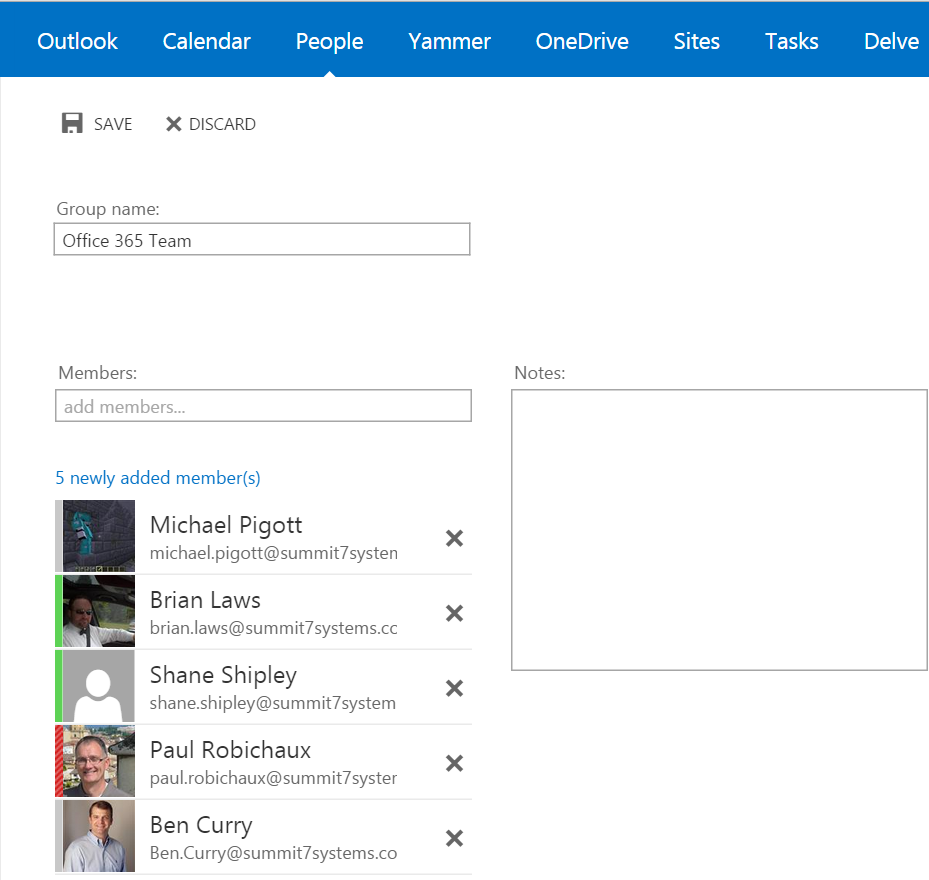
  • First, I looked around to figure out how to create a new group. The screenshot in the online help shows Groups appearing in the left-side folder nav bar. I didn’t see that in my tenant. When I switched to the People view, I noticed that the People search selector had a “Groups” item available, but since there were no groups that wasn’t super helpful. Clicking the “New” icon at the upper right of the People view gave me a modal pop-up asking me whether I wanted to create a new group or person. The interface for creating new groups is straightforward: give your group a name, add some people to it, and off you go. Here’s what it looks like:
Creating a new group is straightforward.

Creating a new group is straightforward.

Note that there’s no way to specify an email address for the group object. You can send mail to it from within OWA, or by clicking the envelope icon in the group information sheet, but there’s no visible external SMTP address to, send to. This seems like an oversight.

  • The group documentation says that newly created groups get their own OneDrive for Business folder and group mailbox, but I haven’t yet seen any signs of those objects in my tenant. However, the docs also say that group members will get a “welcome to your new group” email once those objects have been created, and because that hasn’t shown up yet, I’m guessing that there’s just a short provisioning delay.
  • I created a new group named “Managing Consultants”. I picked that name on purpose, because I already had a mail-enabled security group with the same name. The Groups interface happily let me create a duplicate. The existing USG doesn’t show up in the Groups interface in OWA, nor does the new Group show up in Outlook’s online GAL (which may just be an artifact of AD latency). The help topic for creating and navigating groups shows a number of settings that aren’t visible in my tenant. For example, you can supposedly change the URL used to access the group or set the group to either private or public– those options aren’t available to me yet.
  • I clicked on the mail icon to create a message and sent it off; it arrived immediately in the target mailboxes. Interestingly, though, the group name doesn’t show up in Outlook; instead, the individual group members’ names appear.
  • Even after creating two groups and sending a message to one of them, neither group appeared in the OWA left navigation bar. Surprisingly, they didn’t appear in the OneDrive nav bar either:
Where'd my groups go?

Where’d my groups go?

  • Bizarrely, clicking the “Browse groups” item opens a new OWA window, which opens in mail view, not the People view. The new OWA window’s left nav bar has a People section, but it’s empty– even though the original OWA window I kept open still correctly shows unread mail from people in my Inbox.
  • When I create a Group, it doesn’t appear as an available group in Yammer. I presume this is by design.
  • I didn’t test Group conversations because there are no visible Group objects in OWA where the docs say they should be.

From the bumpy state of feature display and behavior at this point, I infer that there’s a multi-step provisioning task that runs when a new Group is created, and that at least the ODB step hasn’t run yet. This might confuse users who wonder why they can use a group for one purpose (sending mail) but not another (ODB). I’ll wait a day or so for the provisioning and loop back to see which of these items are bugs and which are just caused by setup delays.

6 Comments

Filed under Office 365, UC&C

New ADAL hopefully means Outlook MFA coming soon

Remember back in April when I wrote this post on multi-factor authentication (MFA) for Office 2013? (It’s OK if you don’t, because you can go read it now.) Good news: one of the things required to ship MFA in office is an updated version of the Active Directory Authentication Library, or ADAL. Well, guess what? A couple of days ago, Microsoft announced a major Azure AD update that includes a new release of ADAL. The release notes don’t specifically mention MFA support in ADAL, but they do say that ADAL 2.0 supports “new authentication flows” so I am hopeful that this is the release required to unlock Office 2013 MFA support. I guess we’ll see; it wouldn’t surprise me to see Microsoft announce its availability at TechEd Europe, since that’s the next major event on their schedule. Stay tuned…

Leave a comment

Filed under Office 365, UC&C

Microsoft replaces MEC, LyncConf, SPC with new “unified technology event”

So the news is out: Microsoft is rolling MEC, Lync Conference, and SharePoint Conference into a single “unified commercial technology conference” in Chicago next year. MVPs were notified that this change was in the works, and there was a lot of vigorous discussion. Now that the cat has been debagged, I wanted to share a few thoughts about this new conference. For perspective, I should say that I attended almost all of the original MEC conferences back in the day and hit both “next-gen” MECs and this year’s Lync Conference. I have also spoken at TechEd around a dozen times all told; I co-chaired Exchange Connections for a number of years and am a repeat speaker there as well, so I am thoroughly familiar with the landscape of Exchange and Lync-oriented conferences. (Since I haven’t been to SPC, any time I talk about MEC or LyC you can just mentally search-and-replace “SPC” in there if you like.)

Is this just TechEd 2.0?

The announcement, bylined with Julia White’s name, says that Microsoft is combining MEC, LyC, and SPC to provide a unified event that will give attendees “clearer visibility into Microsoft’s future technology vision and roadmap” and “unparalleled access to Microsoft senior leaders and the developers who write the code.” One of the most valuable aspects of the current set of product-specific conferences, of course, is the deep engagement with people from each specific product group. The enthusiasm and passion that the developers, testers, support engineers, PMs, and leaders of the Exchange and Lync product groups shines through: they are just as happy and excited to be there as the attendees are, and this creates a unique energy and sense of community that are consistently absent from TechEd.

Microsoft has been very successful at positioning TechEd as the generalists’ conference, with coverage of every part of their stack. Developers, architects, security engineers, and business decision makers all had content targeted at them, but it was often driven by Microsoft’s marketing agenda and not by customer demand. As the number of products in Microsoft’s portfolio has grown, TechEd hasn’t lengthened to accommodate more sessions; instead, the number of Exchange/Lync/Office 365 sessions has remained roughly constant even as those products have expanded. I think it’s fair to say that as a vehicle for deep technical information, TechEd’s glory days are far behind it. On the other hand, as a vehicle to showcase the Microsoft party line, TechEd thrived. It became clear several years ago that individual product communities would greatly benefit from having their own conferences to focus on their unique needs. Exchange Connections did a good job of filling this niche, of course, but first SPC, then LyC, then MEC proved that these product-specific conferences engendered a very high degree of attendee (and exhibitor) satisfaction and engagement, and they proved the high value of having a Microsoft-led and -organized conference with enthusiastic participation from the big wheels in each product group.

The announcement goes on to say “feedback from attendees across the past conferences asking for more content and product team engagement across Microsoft versus just within one product area.” In complete sincerity, I can say that none of the hundreds of MEC or LyC attendees, or MVPs, or Microsoft product group folks I have spoken to have said “gee, what we really need is a big conference that covers all of Microsoft’s UC&C products.” I do know that the product groups have aggressively sought and carefully considered feedback from attendees at these conferences, so it’s certainly possible that they’ve been hearing something very different than I have. It is true that people whose duties or interests span multiple products have to go to multiple conferences, and this is a valid complaint. Many consultants can’t spare multiple weeks of bench time to attend all of the relevant conferences, and many smaller companies that are using multiple products aren’t able to budget multiple conferences either. So from their standpoint, perhaps this unification is a win.

Tony points out that there are great logistical and cost-savings benefits to Microsoft in consolidating the conference, and that exhibitors may prefer to have a larger, more diverse audience. I agree with the former; on the latter, I’m not sure. Companies whose product lines span multiple parts of the UC&C ecosystem may benefit; for example, ENow makes both Exchange and Lync monitoring solutions, so having both Lync and Exchange admins in the crowd is great for them. I’m not sure the same is true for exhibitors such as Polycom, AvePoint, or Sherpa Software, whose products focus on one Microsoft server.

Julia goes on to promise that “this unified conference will be every bit as awesome, every bit as valuable and in fact, it will exceed on both these measures. That is our maniacal focus and commitment to you, so hold us to it!” While I am naturally skeptical of broad and unsupported promises such as this, the many, many people involved in the existing round of conferences— from Julia and her staff to the individual product group folks like Jamie Stark and Brian Shiers to the MVP and MCM speakers— all have a huge interest in making sure that the new event meets the high bar set by the existing conference. That helps temper my skepticism with a high degree of optimism. The announcement promises more details on the conference (perhaps including a name?) in September, and I’d expect to see more details at TechEd EMEA in October.

One last note for speculation: if you were Julia, and you were planning on introducing new versions of your flagship products, wouldn’t it be logical to do it with a big splash at a new event? May 2015 is, conveniently, in the first half of calendar year 2015, and at MEC 2014 Microsoft told us to expect a new on-prem version of Exchange in the second half of 2015.

2 Comments

Filed under Office 365, UC&C

Does Azure Machine Learning open the door for on-premises Office Graph?

Microsoft continues to expand the reach of its Azure services by introducing new capabilities, seemingly on a daily basis. Today I was surprised to see an announcement for the new Azure Machine Learning service (more background in this NY Times article). The link for the service apparently isn’t live yet, though.

The availability of this service raises some interesting questions around Office Graph, the set of nifty social-ish features that Microsoft introduced at SPC and reiterated at MEC and TechEd. We recently learned that, at least for now, there are no plans to offer Office Graph, and its associated features, to on-premises customers in the next release of Exchange Server. Carefully parse that statement; it could mean anything from “there will never be Office Graph features in on-prem Exchange” to “we can change our plans and include them at any time.”

It’s fair to say that Office Graph is designed to leverage the high scale of Office 365, and that because it is a resource-intesive group of processes and services, that there’s likely to be a lot of infrastructure for management, monitoring, and tuning of its components— not necessarily something that could trivially be unleashed on the existing base of on-premises customers. I’d bet that these services have a lot of interconnections, too. However, if Microsoft is adopting the Amazon approach of  “everything is a service”, as they seem to be, you’d think that having some parts of Office Graph running on Azure ML is not only possible but probable. And the Azure folks are clearly comfortable with hybrid environments, as witness the fact that the Forza 5 and Titanfall video games on Xbox One both make extensive use of Azure-based resources.

So, if Office Graph is (or could be) consuming Azure ML as a service, it would seem to lower the barrier for getting Office Graph-related services into on-prem Exchange. I’ll be watching closely to see what Microsoft announces, and even more closely to see what they do, around this issue— it seems like the best possible world would be one where on-prem customers can harness the scale of Azure to get access to Office Graph features and where Microsoft doesn’t have to engineer a complete support system around on-prem variants of the Office Graph components. Stay tuned…

Leave a comment

Filed under Office 365, UC&C

Creating an Office 365 demo tenant

One of the big advantage of software as a service (SaaS) is supposed to be reduced overhead: there are no servers to install or configure, so provisioning services is supposed to be much easier. That might be true for customers, but it isn’t necessarily true for us as administrators and consultants. Learning about Office 365 really requires hands-on experience. You can only get so far from reading the (voluminous) documentation and watching the (many and excellent) training videos that Microsoft has produced. However, there’s a problem: Office 365 costs money.

There are a few routes to get free access to Office 365. If you’re an MVP, you can get a free subscription, limited (I think) to 25 users. If you’re an MSDN subscriber, you can get a tenant with a single user license, which is fine for playtime but not terribly useful if you need a bigger lab. Microsoft also has a 30-day trial program (for some plans: Small Business Premium, Midsize Business, and Enterprise) that allows you to set up a tenant and use it, but at the end of that 30-day period the tenant goes away if you don’t pay for it. That means you can potentially waste a lot of effort customizing a tenant, creating users, and so on only to have it vanish unless you whip out the credit card.

I was a little surprised to find out recently that there’s another alternative: Microsoft has a tool that will create a new demo tenant on demand for you. You can customize many aspects of the tenant behavior, and you can use the provided user accounts (which include contact photos and real-looking sample emails and documents) or create your own. There are even vertical-specific packs that customize the environment for particular customer types. And it’s all free; no payment information is required. However, you do have to have a Windows Live ID that is associated with a Microsoft Partner Network (MPN) account. If you don’t have one, you can join MPN fairly easily.
All this goodness is available from www.microsoftofficedemos.com. Here’s what you need to do to use it.
  1. Go to http://www.microsoftofficedemos.com/ and log in.
  2. Click the “Get Demo” link in the top nav bar, or the “Create Demo” link on the page, or just go to https://www.microsoftofficedemos.com/Provision_step1.aspx. That will display the page below. Note that you can download VHDs that provide an on-prem version of the demo environment if you want those instead.
    Tenant01
  3. Make sure you’ve selected “Office 365 tenant” from the pulldown, then click “Next”. That will display a new page with four choices, all of which are pretty much self-explanatory. If you want an empty tenant to play around with, choose the “Create an empty Office 365 tenant”. If you want one that has users, email, documents, and so on, choose “Create new demo environment” instead.
    tenant02
  4. On the next page, you can choose whether you want the standard demo content or a vertical-specific demo pack. This will be a really useful option once Microsoft adds more vertical packs, but for now the only semi-interesting one is retail, and the provided demo guides (IMHO) are more useful for the standard set, so that’s what I’d pick. After you choose a data set, click “Create Your Demo”.
  5. The next page is where you name the tenant, and where Microsoft asks you to prove you’re not a bot by entering a code that they send to your mobile phone. (Bonus points if you know why I picked this particular tenant name!) The optional “Personalize Your Environment” button lets you change the user names (both aliases and full names) and contact pictures, so if you’re doing a demo for a particular customer you can put in the names of the people who will attend the demo to add a little spice. The simple option is to customize a single user; there’s one main user for each of the demos (which I’ll get to in a minute), but you can customize any or all of the 25 default users.
    Tenant04
  6. Once you click “Create My Account”, the demo engine will start creating your tenant  and provisioning it. This takes a while; for example, yesterday it took about 12 hours from start to finish. Provisioning demos is just about last on Microsoft’s priority list, so if you need a tenant in a hurry use the “create a blank tenant” option I mentioned earlier. You’ll see a progress page like the one below, but you’ll also get a notification email to the address you provided in step 5 when everything’s finished, so there’s no need to sit and watch it.
    Tenant06
Once the tenant is provisioned, you can log into it using any of the test users, or the default “admin” user. How do you know which users are configured (presuming you didn’t customize them, that is)? Excellent question. The demo guides provide a complete step-by-step script both for setting up the demo environment and executing the demo itself. For example, the Office 365 Enterprise “hero demo” is an exhaustive set of steps that covers all the setup you need to do on the tenant and whatever client machines you’re planning on using.
Once the tenant is provisioned, it’s good for 90 days. You can’t renew it, but at any time during the 90 days you can refresh the demo content so that emails, document modification times, and so on are fresh. And on the 91st day, you can just recreate the tenant; there doesn’t seem to be any explicit limit to the number of tenants you can create or the number of times you can create a tenant with a given name.
While the demo data set is quite rich, and the provided demo scripts give you a great walkthrough to show off Office 365, you don’t have to use them. If you just want a play area that you can test with, this environment is pretty much ideal. It has full SMTP connectivity, although I haven’t tested to verify that every federation and sharing feature works properly (so, for example, you might not be able to set up free/busy sharing with your on-prem accounts). I also don’t know whether there are any admin functions that have been RBAC’d to be off limits. (If you see anything like that, please post a comment here.)
Enjoy!

11 Comments

Filed under Office 365, UC&C