Category Archives: Office 365

Microsoft updates Recoverable Items quota for Office 365 users

Remember when I posted about the 100GB limit for Personal Archive mailboxes in Office 365? It turns out that there was another limit that almost no one knew about, primarily because it involves mailbox retention. As of today, when you put an Office 365 mailbox on In-Place Hold, the size of the Recoverable Items folder is capped at 30GB. This is plenty for the vast majority of customers because a) not many customers use In-Place Hold in the first place and b) not many users have mailboxes that are large enough to exceed the 30GB quota. Multiply two small numbers together and you get another small number.

However, there are some customers for whom this is a problem. One of the most interesting things about Office 365 to me is the speed at which Microsoft can respond to their requests by changing aspects of the service architecture and provisioning. In this case, the Exchange team is planning to increase the size of the Recoverable Items quota to 100GB. Interestingly, they’re actually starting by increasing the quota for user mailboxes that are now on hold— so from now until July 2014, they’ll be silently increasing the quota for those users. If you put a user on hold today, however, their quota may not be set to 100GB until sometime later.

If you need an immediate quota increase, or if you’re using a dedicated tenant, you’ll still have to use the existing mechanism of filing a support ticket to have the quota increased.

There’s no public post on this yet, but I expect one shortly. In the meantime, bask in the knowledge that with a 50GB mailbox, 100GB Personal Archive, and 100GB Recoverable Items quota, your users probably aren’t going to run out of mailbox space any time soon.

2 Comments

Filed under Office 365, UC&C

Two-factor authentication for Outlook and Office 2013 clients

I don’t usually put on my old man hat, but indulge me for a second. Back in February 2000, in my long-forgotten column for TechNet, here’s what I said about single-factor passwords:

I’m going to let you in on a secret that’s little discussed outside the security world: reusable passwords are evil.

I stand by the second half of that statement: reusable passwords are still evil, 14 years later, but at least the word is getting out, and multi-factor authentication is becoming more and more common in both consumer and business systems. I was wrong when I assumed that smart cards would become ubiquitous as a second authentication factor; instead, the “something you have” role is increasingly often filled by a mobile phone that can receive SMS messages. Microsoft bought into that trend with their 2012 purchase of PhoneFactor, which is now integrated into Azure. Now Microsoft is extending MFA support into Outlook and the rest of the Office 2013 client applications, with a few caveats. I attended a great session at MEC 2014 presented by Microsoft’s Erik Ashby and Franklin Williams that both outlined the current state of Office 365-integrated MFA and outlined Microsoft’s plans to extend MFA to Outlook.

First, keep in mind that Office 365 already offers multi-factor authentication, once you enable it, for your web-based clients. You can use SMS-based authentication, have the service call you via phone, or use a mobile app that generates authentication codes, and you can define “app passwords” that are used instead of your primary credentials for applications— like Outlook, as it happens— that don’t currently understand MFA. You have to enable MFA for your tenant, then enable it for individual users. All of these services are included with Office 365 SKUs, and they rely on the Azure MFA service. You can, if you wish, buy a separate subscription to Azure MFA if you want additional functionality, like the ability to customize the caller ID that appears when the service calls your users.

With that said, here’s what Erik and Franklin talked about…

To start with, we have to distinguish between the three types of identities that can be used to authenticate against the service. Without going into every detail, it’s fair to summarize these as follows:

  • Cloud identities are homed in Azure Active Directory (AAD). There’s no synchronization with on-premises AD because there isn’t one.
  • Directory sync (or just “dirsync”) uses Microsoft’s dirsync tool, or an equivalent third-party tool, to sync an on-premises account with AAD. This essentially gives services that consume AAD a mostly-read-only copy of your organization’s AD.
  • Federated identity uses a federation broker or service such as Active Directory Federation Services (AD FS), Okta, Centrify, and Ping to allow your organization’s AD to answer authentication queries from Office 365 services. In January 2014 Microsoft announced a “Works With Office 365 – Identity” logo program, so if you don’t want to use AD FS you can choose another federation toolset that better meets your requirements.

Client updates are coming to the Office 2013 clients: Outlook, Lync, Word, Excel,  PowerPoint, and SkyDrive Pro. With these updates, you’ll see a single unified authentication window for all of the clients, similar (but not necessarily identical) to the existing login window you get on Windows when signing into a SkyDrive or SkyDrive Pro library from within an Office client. From that authentication window, you’ll be able to enter the second authentication factor that you received via phone call, SMS, or authentication app. During the presentation, Franklin (or maybe Erik?) said “if you can authenticate in a web browser, you can authenticate in Office clients”— very cool. (PowerShell will be getting MFA support too, but it wasn’t clear to me exactly when that was happening).

These client updates will also provide support for two specific types of smart cards: the US Department of Defense Common Access Card (CAC) and the similar-but-civilian Personal Identity Verification (PIV) card. Instead of using a separate authentication token provided by the service, you’ll plug in your smart card, authenticate to it with your PIN, and away you go.

All three of the identity types of these methods provide support for MFA; federated identity will gain the ability to do true single sign-on (SSO) jn Office 2013 clients, which will be a welcome usability improvement. Outlook will get SSO capabilities with the other two identity types, too.

How do the updates work? That’s where the magic part comes in. The Azure Active Directory Authentication Library (ADAL) is being extended to provide support for MFA. When the Office client makes a request to the service the service will return a header that instructs the client to visit a security token service (STS) using OAuth. At that point, Office uses ADAL to launch the browser control that displays the authentication page, then, as Erik puts it, “MFA and federation magic happens transparent to Office.” If the authentication succeeds, Office gets security tokens that it caches and uses for service authentication. (The flow is described in more detail in the video from the session, which is available now for MEC attendees and will be available in 60 days or so for non-attendees).

There are two important caveats that were a little buried in the presentation. First is that MFA in Outlook 2013 will require the use of MAPI/HTTP. More seriously, MFA will not be available to on-premises Exchange 2013 deployments until some time in the future. This aligns with Microsoft’s cloud-first strategy, but it is going to aggravate on-premises customers something fierce. In fairness, because you need the MFA infrastructure hosted in the Microsoft cloud to take advantage of this feature, I’m not sure there’s a feasible way to deliver SMS- or voice-based MFA for purely on-prem environments, and if you’re in a hybrid, then you’re good to go.

Microsoft hasn’t announced a specific timeframe for these updates (other than “second half calendar 2014”), and they didn’t say anything about Mac support, though I would imagine that the rumored v.next of Mac Office would provide this same functionality. The ability to use MFA across all the Office client apps will make it easier for end users, reducing the chance that they’ll depend solely on reusable passwords and thus reducing the net amount of evil in the world— a blessing to us all.

1 Comment

Filed under Office 365, UC&C

Office 365 Personal Archives limited to 100GB

There’s a bit of misinformation, or lack of information, floating around about the use of Office 365 Personal Archives. This feature, which is included in the higher-end Office 365 service plans (including E3/E4 and the corresponding A3/A4 plans for academic organizations), is often cited as one of the major justifications for moving to Office 365. It’s attractive because of the potential savings from greatly reducing PST file use and eliminating (or at least sharply reducing) the use of on-premises archiving systems such as Enterprise Vault.

Some Microsoft folks have been spreading the good news that archives are unlimited (samples here and here), and so have many consultants, partners, and vendors– including me. In fact, I had a conversation with a large customer last week in which they expressed positive glee about being able to get their data out of on-prem archives and into the cloud.

The only problem? Saying the archives are unlimited isn’t quiiiiite true.

If you read the service description for Exchange Online (which we all should be doing regularly anyway, as it changes from time to time), you’ll see this:

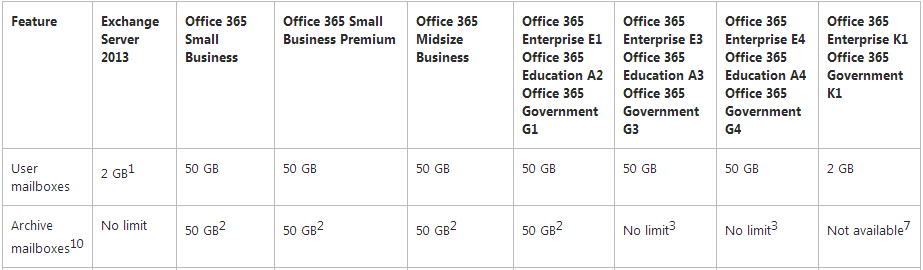
Clip from Nov 2013 O365 service description

Clip from Nov 2013 O365 service description

See that little “3”? Here’s its text:

Each subscriber receives 50 GB of storage in the primary mailbox, plus unlimited storage in the archive mailbox. A default quota of 100 GB is set on the archive mailbox, which will generally accommodate reasonable use, including the import of one user’s historical email. In the unlikely event that a user reaches this quota, a call to Office 365 support is required. Administrators can’t increase or decrease this quota.

So as an official matter, there is no size limit. As a practical matter, the archive is soft-limited to 100GB, and if you want to store more data than that, you’ll have to call Microsoft support to ask for a quota increase. My current understanding is that 170GB is the real limit, as that is the maximum size to which the quota can currently be increased. I don’t know if Microsoft has stated this publicly anywhere yet but it’s certainly not in the service descriptions. That limit leads me to wonder what the maximum functional size of an Office 365 mailbox is– that is, if Microsoft didn’t have the existing 100GB quota limit in place, how big a mailbox could they comfortably support? (Note that this is not the same as asking what size mailbox Outlook can comfortably support, and I bet those two numbers wouldn’t match anyway.) I suppose that in future service updates we’ll find out, given that Microsoft is continuing to shovel mailbox space at users as part of its efforts to compete with Google.

Is this limit a big deal? Not really; the number of Office 365 customers who will need more than 100GB of archive space for individual user mailboxes is likely to be very small. The difference between “unlimited” and “so large that you’ll never encounter the limit” is primarily one of semantics. However, there’s always a danger that customers will react badly to poor semantics, perhaps because they believe that what they get isn’t what they were promised. While I would like to see more precision in the service descriptions, it’s probably more useful to focus on making sure that customers (especially those who are heavy users of on-premises archives or PST files) know that there’s currently a 100GB quota, which is why I wrote this post.

For another time: a discussion of how hard, or easy, it is to get large volumes of archive data into Office 365 in the first place. That’s one of the many topics I expect to see explored in great depth at MEC 2014, where we’ll get the Exchange team’s perspective, and then again at Exchange Connections 2014, where I suspect we’ll get a more nuanced view.

5 Comments

Filed under Office 365, UC&C

Office 365 token disclosure flaw: patch your desktops now

Happy New Year! To start the year off right, let’s talk about security. More to the point, let’s talk about Office 365 security.

One of the ways I often talk about Office 365 to customers is this: any time you move to a hosted service, you’re placing a bet that your hosting provider can do something better or cheaper than you do. Maybe they’ll deliver better uptime than you can afford to provide, or they’ll offer global reach, or some feature or function that you don’t currently have. As with any other bet, you have to carefully evaluate the odds and your counterparty (the person offering the bet). One of the big arguments in favor of Office 365 has been its security: Microsoft has invested a huge amount of money in physical and logical security for Office 365. Tie this in with the huge investment (several billion dollars and counting) brought about by Trustworthy Computing and you can see why Microsoft is eager to tout the security of their products: they have made huge strides over the last ten years. (Sadly, many other vendors are still as bad as they were back in 2005… let that thought sink in for a few minutes.)

In December, Microsoft released a patch, MS13-104, which every organization using Office 365 should immediately deploy. Microsoft rated this bulletin as “important” using their severity scale. While I understand that the “critical” severity is usually reserved for flaws that could allow remote code execution, I think this is just as bad because it allows an attacker to silently steal every document you have in a SharePoint Online document library.

Wow.

Keep this tab open, then open a new tab and use it to start figuring out how to patch your clients ASAP if you’re using SharePoint Online. Then you can come back.

I won’t repeat the excellent analysis performed by Adallom Security, the folks who reported the flaw to Microsoft in May 2013. That’s right: they reported in May 2013, and the patch was issued in December 2013. That’s a minimum of 7 months of days-of-risk, which is bad enough without considering how long this flaw was being exploited before Adallom found it. However, I do want to make a couple of additional points.

First, they wrote their post before the recent spate of disclosures surrounding the NSA’s Targeted Access Operations (TAO) team and their catalog of exploits. There is of course no evidence that NSA developed or was using this particular exploit, but this is exactly the kind of silent, virtually undetectable attack that is the specialty of nation-states. The fact that Adallom’s customer is a large, high-profile enterprise is potentially bad news for Office 365 sales efforts, given that those customers are already a little leery of cloud services because of a perceived lack of security controls.

Second, this exploit apparently doesn’t work against Exchange Online or Lync Online, but that hasn’t been proven conclusively. Don’t hold off patching Office 2013 just because you aren’t using SharePoint Online.

Third, it seems to me that this kind of flaw is the natural consequence of breaking new ground. Seamlessly tying together on-premises and cloud services through a complex desktop suite is something that no other software company has even attempted: the major Office 365 competitors, such as Box.net and Google, don’t offer traditional desktop productivity apps, preferring instead to run inside the browser, where the design patterns and potential vulnerabilities of authentication are much better understood. So I don’t think of this as sloppiness necessarily on Microsoft’s part: sometimes in complex systems, people make mistakes. 210+ days-of-risk makes me a little nervous though.

My overall takeaway: if you have truly sensitive data that you want to protect, putting it in the cloud is not necessarily any more risky than keeping it on-premises. That may seem counterintuitive, but an entity that is determined to get your data has many potential avenues of attack, and my experience tells me that the vast majority of sites have a number of local vulnerabilities (such as poor patching practices, poor intrusion detection, or inattention to basic security practices) that put them at higher risk than a relatively esoteric, hard-to-exploit flaw like this one. if you don’t believe me, just look at the number of sites hit by Cryptolocker and various banking-related Trojans. Put another way, you don’t need to worry about defending yourself against NSA if you can’t even manage to defend yourself against script kiddies.

Now go forth and patch!

Leave a comment

Filed under Office 365, UC&C

Office 365 beta exams: a few thoughts

Last week I took the beta versions of the two MCSA exams for Office 365: 71-346 is Managing Office 365 Identities and Requirements and 71-347 is Enabling Office 365 Services. I thought it might be useful to write up a few NDA-safe notes on the exams and the topics they cover. Keep in mind that the questions on the beta exam are there because they’re being tested; the objective domains (ODs), or areas of knowledge being tested, won’t change but the specific questions probably will as the beta identifies “bad” questions (those that everyone gets right or everyone gets wrong are immediately suspect!) The Microsoft exam development process is really complicated; to summarize, by the time the exams hit beta, the knowledge areas to be tested are set in stone but the questions themselves can be modified, or thrown out, based on beta exam feedback.

First, be forewarned that there are no formal study materials for these exams. I hear that Office 365 Admin Inside Out from MS Press is decent, but haven’t read it yet. Be prepared to do a lot of binging to look up specific things that you want to know how to do.

Second, the absolute best way to prepare for the exam is to sign up for a trial Office 365 E3/E4 tenant and make sure that you know how to do everything mentioned in the exam objectives in both PowerShell and the GUI. This is baloney, and it has been a hot topic of debate in the MVP community. IMHO there is little value in asking an examinee to show that they know how to do something in PS which is trivial to do in the GUI, especially if it’s a one-time task like setting up Azure RMS. Nonetheless, that’s the requirement.

For 346, specific things you should probably know include:

  • How to add a new tenant, from scratch. This includes choosing a region (and what effect that has), setting the domain purpose, and confirming domain ownership.
  • How to configure DNS records and firewall settings: SRV, CNAME, and MX records, what they point to, etc.
  • How to design ADFS: how to size it, when to use SQL Server instead of WID, and so on. Note that actually doing HA or DR with ADFS is not one of the topics listed in the OD, but you’ll need to know how to do it anyway. The ADFS 2.0 documentation content map is very helpful here.
  • How to administer (parts of) ADFS, including installing it (prerequisites too) on both Windows 2008 and 2012 (but not R2), controlling filtering, and managing dirsync. I have heard that there are questions in the pool that cover ADFS 3.0 but don’t know if that’s true.
  • How you’d conduct a pilot, including how to use connected accounts and mail forwarding.
  • What the different administrative roles in 365 are for and what they can do, including how to manage delegated admins.
  • How to provision / license users through the 365 Admin Center.
  • Basic account management through PowerShell: creating users, modifying their properties, licensing them, etc. Nothing too exotic; I expect most Exchange and Lync admins can do these types of things now without difficulty.
  • How to provision, enable, and administer AD RMS, a surprisingly cool technology that Brian Reid has written about at length already.
  • What the mail flow/message hygiene reports are and what you can do with them
  • How to do daily admin tasks: checking service health, using the RSS feeds, opening service tickets, etc.
  • Troubleshooting using the Remote Connectivity Analyzer and MOSDAL

347 is a little more of a mixed bag because it contains both admin-level material similar to ODs in 346 plus a smorgasbord of other stuff. The most important thing to know here: you must know how to do stuff with SharePoint Online. Out of the 53 questions on my beta exam, 12 of them (22.6%) were related to SPO.  Given that about 0.5% of my actual knowledge relates to SPO, that was a problem. I don’t use it, and I haven’t worked on the SPO-related parts of any deployments for Dell customers, so I was unprepared. Don’t be like me. Be prepared to demonstrate that you know:

  • All about Click-to-Run, including how it differs from MSI installations, how you customize what gets installed, how the installs themselves work, etc.
  • All about Office Telemetry. Never heard of it? Neither had I. Its inclusion in these exams seems a bit odd, since I suspect you’d see people running it before deploying Office 2013 on-prem too. It’s been a while since I was directly involved in the world of desktop deployment, though, so maybe everyone but me knows about them.
  • How to manage SPO site collections, including how to share and unshared them, set quotas, etc.
  • How to provision (including how to license) Excel and Visio Services
  • How to manage proxy, reply-to/default addresses, resource mailboxes, external contacts, and groups in Exchange— standard stuff for working Exchange admins.
  • How to work with archiving policies on both Exchange and Lync, including integration with Exchange 2013’s in-place hold mechanism
  • How to set up Lync settings for external access, including visibility of presence and per-user access to PIC

Again, you need to know how to do these things in both PowerShell and the GUI, despite the fact that many of the tasks in the ODs will be things you do once (or maybe quarterly, at most).

Should you take the beta exams? It depends, I guess. They cost the same as the “real” exam, and they’re subject to the same “Second Shot” MS program that grants you one retake of a failed exam. So you could sign up and take the beta now for $150, then take the real exam for free if you don’t pass. Based on the state of the exam questions I saw, and the lack of structured training materials, I don’t recommend that you rush to take the exam, though; the real version goes live on 17 February. Until then, your time would probably be better spent setting up a scratch tenant that you can play with, then running through the list of ODs to make sure that you know how to do the things on the list.

I’d be interested in hearing from people who took the exam to see how well you think the exam actually matches up with what Office 365 admins and designers need to know in the real world.

1 Comment

Filed under Office 365, UC&C

Microsoft, encryption, and Office 365

So the gloves are starting to come off: Microsoft general counsel Brad Smith wrote a long blog post this morning discussing how Microsoft plans to protect its customers’ data from unlawful interception by “unauthorized government access”. He never specifically mentions NSA, GCHQ, et al, but clearly the Five Eyes partners are who he’s talking about. Many other news outlets have dissected Smith’s post in detail, so I wanted to focus on a couple of lesser-known aspects.

First is that Microsoft is promising to use perfect forward secrecy (PFS) when it encrypts communications links. Most link-encryption protocols, including IPsec and SSL, use a key exchange algorithm known as Diffie-Hellman to allow  the two endpoints can agree on a temporary session key by using their longer-term private/public key pairs. The session key is usually  be renegotiated for each conversation. If Eve the eavesdropper or Mallet the man-in-the-middle intercept the communications, they may be able to decrypt it if they can guess or obtain the session key. Without PFS, an attacker who can intercept and record a communication stream now and can guess or obtain the private key of either endpoint can decrypt the stream. Think of this like finding a message in a bottle written in an unknown language, then next year seeing Rosetta Stone begin to offer a course in the language. PFS protects an encrypted communication stream now from future attack by changing the way the session keys are generated and shared. Twitter, Google, and a number of other cloud companies have already deployed PFS (Google, in fact, started in 2011) so it is great to see Microsoft joining in this trend. (A topic for another day: under what conditions can on-premises Exchange and Lync use PFS? Paging Mark Smith…)

Second is that Microsoft is acknowledging that they use data-at-rest encryption, and will be using it more often. Probably more than any other vendor, Microsoft is responsible for democratizing disk encryption by including BitLocker in Windows Vista and its successors, then steadily improving it. (Yes, I know that TrueCrypt and PGP predated BitLocker, but their installed bases are tiny by comparison.) Back in 2011 I wrote about some of the tradeoffs in using BitLocker with Exchange, and I suspected that Microsoft was using BitLocker in their Office 365 data centers, a suspicion that was confirmed recently during a presentation by some of the Office 365 engineering team and, now, by Smith’s post. Having said that, data-at-rest encryption isn’t that wonderful in the context of Office 365 because the risk of an attacker (or even an insider) stealing data by stealing/copying physical disks from an Office 365 data center is already low. There are many layers of physical and procedural security that help keep this risk low, so encrypting the stored data on disk is of relatively low value compared to encrypting the links over which that data travels.

The third aspect is actually something that’s missing from Smith’s post, expressed as one word: Skype. Outlook.com, Office 365, SkyDrive, and Azure are all mentioned specifically as targets for improved encryption, but nothing about Skype? That seems like a telling omission, especially given Microsoft’s lack of prior transparency about interception of Skype communications. Given the PR benefits that the company undoubtedly expects from announcing how they’re going to strengthen security, the fact that Smith was silent on Skype indicates, at least to suspicious folks like me, that for  now they aren’t making any changes. Perhaps the newly-announced transparency centers will provide neutral third parties an opportunity to inspect the Skype source code to verify its integrity.

Finally, keep in mind that nothing discussed in Smith’s post addresses targeted operations where the attacker (or government agency, take your pick) mounts man-in-the-middle attacks (QUANTUM/FOXACID)  or infiltrates malware onto a specific target’s computer. That’s not necessarily a problem that Microsoft can solve on its own.

Leave a comment

Filed under Office 365, UC&C

The future of importing large quantities of Exchange data to Office 365?

It wouldn’t be accurate to say “you can’t”, but Microsoft doesn’t make it easy.

Whether you’re moving mailboxes or PST data to Office 365, your imports are throttled; that is, Microsoft imposes a limit on how fast you can move information into their data centers. The exact speed of your import process will vary according to a variety of factors, including what protocol (IMAP4, MAPI, or EWS) you’re using, what migration tool you’re using, and how many concurrent threads it can spin up, how busy the data center you’re importing into is, and the mix of item sizes in the mailboxes or PSTs you’re importing.

The problem with this throttling is that it’s largely opaque. Although Microsoft publishes “observed data,” my own observations have shown that migration throughput can vary widely based on these factors and a bunch of others besides, possibly including the phase of the moon and whether you have recently said anything disparaging about Microsoft anywhere on the Internet.

Recently I had a customer who wanted to migrate 30TB of PST data to Exchange Online Personal Archives. While this might sound ridiculous, it makes perfect sense given that Office 365 E4 plans include an unlimited-size Personal Archive for each mailbox. That’s a hard deal to beat… if you can figure out how to get the data in. At one point, in a fit of frustration we asked Microsoft whether we could just send them a bunch of disk drives containing the PSTs. “Of course not,” they said (with “silly boy” being the unspoken coda to that phrase). But it turns out that Azure is now providing bulk import of data by sending disks to them: the Windows Azure Import/Export Service is now in preview. With any luck, we’ll see a similar service from Office 365 in the not-too-distant future. And when it happens, remember, Andy Tanenbaum had the idea first.

3 Comments

Filed under Office 365, UC&C

Office 365 PhotoSync and the third-party market for Office 365

Office 365 has its own thriving MVP community, and fellow MVP Loryan Strant sent me an announcement of a new product he’s developed for Office 365: PhotoSync. The purpose behind the tool is to ease the process of managing user photos in enterprises by providing a better tool for managing user photos. There are tools that provide similiar functionality for on-premises deployments, of course, but this tool’s unique approach (or perhaps unique marketing, as I haven’t tried it myself) is to focus on the fact that many Office 365 deployments will use directory synchronization to get directory information from the on-premises deployment to Office 365.

Using a shared hosted service means accepting some compromises; for example, Microsoft greatly limits subscribers’ ability to customize SharePoint or to configure various aspects of Exchange such as database and DAG settings. This might seem to limit the possibilities for developing software products to supplement Office 365. I think it’s a healthy sign that third parties such as Loryan are developing add-ons and utilities for use with Office 365, although I suspect that only the most agile organizations will be able to identify opportunities and exploit them fast enough to keep up with the cadence of feature and service updates that Microsoft seems to be aiming for.

More on PhotoSync in the future…

1 Comment

Filed under Office 365