Tag Archives: Office 365

Happy day: Windows Outlook now supports Focused Inbox

A few weeks ago I complained about the Focused Inbox feature. A big part of my complaint was that Windows Outlook didn’t support it. This morning, I updated my Windows Office installation and found that the Focused tab magically appeared.. sort of.

First, how I got it: I was already signed up for the Office Insider program, and my tenant is enrolled in Office 365 First Release. My Office installation showed up with “Current” instead of “Office Insider Fast,” though (to check yours, click File | Office Account in any Windows Office application). For some reason, on my unmanaged, non-domain-joined Windows 10 machine, this setting periodically resets, so I launched regedit and changed the value of the UpdateBranch key under Computer\HKEY_LOCAL_MACHINE\SOFTWARE\Policies\Microsoft\office\16.0\common\officeupdate to “Insiderfast”, relaunched Word, and checked for updates. After a few minutes of coffee break, the updates had downloaded. When I launched Outlook, I got the pop-up telling me that Focused Inbox was active.

This leads me to my “sort of” comment. This installation of Outlook has 3 Exchange Online accounts, 1 IMAP account, and a dozen or so shared mailboxes in its default profile. My home robichaux.net account is default. All 3 Exchange Online accounts are on tenants where Focused Inbox is available, and all 3 show the appropriate UI in OWA and Mac Outlook. However, only my work account shows the Focused tab; the other two don’t. Relaunching Outlook didn’t fix this, nor did rebooting, nor did waiting a while. At this point it isn’t clear if having only a single Focused Inbox is by design, a bug, or a temporary limitation. However, I’m happy to see the feature appear at all.

This must be a very new change, as the Outlook 2016 update history doesn’t include it as I write this. Perhaps Microsoft will update it soon to explain more about Focused Inbox support.


3 Comments

Filed under General Stuff, Office 365

Focused Inbox in Office 365: making mail harder

About two and a half years ago, Microsoft rolled out a new mail-sorting feature called Clutter. It was intended to use machine learning to filter important mail from newsletters, shipping notifications, and other… well, clutter, leaving your inbox filled only with mail that required your attention. It was a great idea, and, although it had a few bumps in its implementation, soon evolved into a useful and dependable feature. Now Clutter is gone, and Focused Inbox has replaced it. How’s that working out so far?

First some history: in 2014, Acompli introduced what they called “Focused Inbox” in their mobile client. This represented a different take on inbox cleaning; machine learning would still be applied to sort important mail from clutter, but the important and unimportant mails wouldn’t be logically separated into different folders. This had the advantage of working across multiple email systems. Fast forward to today: Acompli was purchased by Microsoft in December 2014, the former Acompli team has been crushing it with their Outlook Mobile app, and key ex-Acompli folks have taken over some key positions on the Outlook team. Focused Inbox has become the new sheriff in town, and Microsoft is rolling it out to Office 365 tenants. One of my tenants was recently upgraded, so I wanted to write about my experience working with it as an end user. (Keep in mind that, as I write this, Microsoft’s January 26 announcement that they didn’t have a firm timeline for rolling out Focused support for Outlook for Windows is still in force.)

I use three primary clients: the Outlook Mobile client for iOS, Outlook 2016 for Windows, and Outlook 2016 for Mac OS X. I mostly use the mobile client to triage mail while away from my desk– I can quickly respond to important items and delete or file stuff I don’t need. In that role, I’ve been depending on Focused Inbox for a while, and I got used to the disparity between what I’d see on the Focused tab on my phone versus what showed up in my inbox– the desktop inbox showed all my messages, not just the Focused ones, but that wasn’t a big deal, as I was usually grooming my inbox by throwing away or otherwise dealing with the contents of the “Other” tab frequently enough to avoid ugly buildup.

When your tenant’s enabled for Focused Inbox, OWA and Outlook for Mac will display a prompt telling you so; when you click to acknowledge it, you’ll see the new Focused and Other tabs in the UI, just like in the mobile app. Here’s where the fun starts.

First up, Clutter is turned off when you accept that prompt, and it’s turned off permanently… so every message formerly  filtered into the Clutter folder now goes straight to your inbox. That means you’ll get a  notification (if that feature’s enabled) for each new message, much more frequently than you’re probably used to. I’ve long had mail notifications turned off on my phones, but now I have to turn them off on my Windows machine too.

Second, the mobile client doesn’t currently have a way to focus or unfocus a message– so now that Clutter isn’t filtering my inbox traffic, I get crap that I want to mark as “other” but I can’t until I get to a desktop. This is the exact opposite of what I want, and it breaks my normal triage-on-the-go workflow. Alert reader Dang Le Duy pointed out that you can focus or unfocus a message from the mobile client– tap the “overflow” icon (the three little dots) and you’ll see a popup that lets you change the message state, like this:

Yay! I didn't know this feature existed but it makes me happy

Yay! I didn’t know this feature existed but it makes me happy


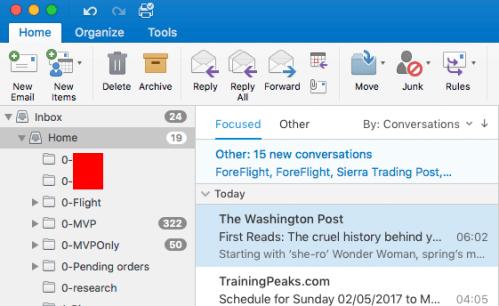
Third, the Mac version of Outlook has long had a feature that combines the contents of the Inbox folder from each account into a single über-inbox (which the team calls the Unified Inbox). IMAP, POP, Exchange, gmail, whatever, all your messages appear in a single handy list. Unfortunately, you only get Focused Inbox in Exchange Online accounts that have the feature enabled– so when you switch back to the Unified Inbox view, all those messages that were neatly tucked away in the “Other” tab come back into your message list. When you select an individual account that has Focused Inbox enabled, you see what you’d expect to:
screen-shot-2017-02-05-at-07-29-35

However, if you go to the Unified Inbox view at the top level, you get something completely different– 6 of the 20 displayed messages appear when they would normally be hidden in the “Other” tab of their parent account:

Focused Inbox doesn't work in the Mac Outlook Unified Inbox

Focused Inbox doesn’t work in the Mac Outlook Unified Inbox

This to me is a significant loss of utility. It’s a complicated problem, to be sure; trying to figure out the right behavior for a mix of accounts (some with Focused Inbox, some without) is tricky. I hope the Mac Outlook team is working on a solution.

With these gripes, you may believe I’m down on Focused Inbox as a feature. I wouldn’t say that’s true. It is useful, and it has tremendous potential, especially when coupled with other machine-learning-driven filtering and prioritization capabilities. But the current client-side implementation takes away some of the utility we had with Clutter, and I want it back. Hopefully we’ll see not only a return to feature parity, so that all my unwanted messages stay tucked out of sight, but improvements that make Focused Inbox clearly superior.

(edited 2-8-17 to reflect that you can, indeed, focus or unfocus messages from the mobile app)

2 Comments

Filed under UC&C

Multi-factor authentication for Exchange Online PowerShell

Everything at the Microsoft MVP Summit is automatically under NDA, so rather than talk about all the secret stuff, I thought I’d share something I learned there that isn’t under NDA because it was already public. Somehow I missed this announcement before, but: there’s a public preview of a new Exchange Online PowerShell module that supports Azure multi-factor authentication (MFA). If you have turned on MFA for administrators in Office 365, you’ve probably found that they can’t use PowerShell to manage Exchange objects. Now you can: download and install this module and you’re all set. Here’s what it looks like in action:

adal-ps

I found out about this when I complained publicly in Tim Heeney‘s session that this doesn’t work. Thankfully Tim set me straight posthaste; after I got the link to the preview, a little searching turned up fellow MVP Vasil Michev’s article describing it, which I either forgot about or never saw.

7 Comments

Filed under Office 365, UC&C

Office 365 Exposed episode 6, from Las Vegas

Fresh on the episode we did at Microsoft Ignite this year, Tony and I thought it would be fun to do another short episode while we’re both in Vegas for IT/DevConnections… so we did. Topics include a spiffy new profanity filter (for Office 365 Groups, not Tony and me), the triumphant debut of Focused Inbox on desktop Outlook, and a touching closing segment where Tony mourns the loss of a favored gadget.

Leave a comment

Filed under Office 365, Podcasts

Microsoft Exchange engineering and cloud-scale

The Exchange team (or at least Perry Clarke, its fearless leader) has been known to describe Exchange Online as “the gateway drug to the cloud.” But how did that come to pass?

This week at Ignite, I was lucky enough to have dinner with some folks from the Exchange product team and a very, very large customer where we discussed the various ways in which Exchange engineering has blazed a trail the rest of Microsoft’s server products have eventually followed. After a bracing Twitter discussion this afternoon with @swiftonsecurity and some of her other followers, I thought it would be fun to put together a partial list of some of the things we discussed to illustrate how the Exchange team has built a stairway to heaven, or an elevator to the cloud, or something like that.

Let’s start with PowerShell. Love it or hate it, it is here, so we all have to deal with it. In 2007, the idea that Exchange would be built on PS was both revolutionary and, to many, revolting, but it allowed Microsoft to do several important things (not all of which shipped in Exchange 2007, but all of which are critical to cloud operations):

  • Greatly improve testability, both for the developers themselves but also for administrators, who now got a suite of protocol and endpoint-related tests they could run as part of troubleshooting– critically important when you have to troubleshoot in a global network of data centers hosting tens of millions of mailboxes
  • Fully enable role-based access control, also critical for cloud deployments where customers want to control who can do what with their data
  • Finally decouple the presentation layer of the UI (EMC, EAC, etc) from business logic
  • Massively improve the tools for scripting, including enabling very large-scale bulk operations– an obvious requirement for a cloud-scale service

Requiring PowerShell was a bold move by the Exchange team but one which has both paid off hugely and one that’s been echoed by the Windows, SharePoint, SQL Server and Skype teams, all of whom depend on it for managing their own cloud services. (See also: the Microsoft Graph APIs.)

Then there’s storage performance. In ancient days, getting scale from Exchange pretty much required the use of SANs due to Exchange’s IO requirements. Now, thanks to the IOPS diet imposed by Exchange engineering, it doesn’t. Tony does his usual excellent job of summarizing the actual reductions. Summary: Exchange 2016 requires roughly 96% fewer IOPS than Exchange 2003 did. There have been a ton of storage performance improvements in Exchange’s sister products (notably SQL) but those have their own stories that I’m not competent to tell. The relentless drive to cut IOPS requirements was one of the biggest enablers for Exchange Online, since controlling storage provisioning costs is critical for any type of scaled cloud service.

Of course, data protection is critical too. Exchange moved from having a single monolithic database to one with separate property and MIME databases (Exchange 2000) then to having software-based database replication with clustering (Exchange 2007) to shared-nothing, fully-replicated active/passive database replication (Exchange 2010 and later). Keeping multiple separate database copies (including lagged copies) enables all sorts of DR and HA scenarios that previously had required SANs. The ability to reliably use cheap JBOD disks, which thanks to Moore’s Law have embiggened nicely during Exchange’s lifetime, has been a key enabler for Exchange Online.

Then there’s a bunch of other architectural changes and improvements that are really only interesting to Exchange nerds. For the latest example, I present “read from passive,” but there’s also all the stuff covered by the Preferred Architecture.

Oh, I almost forgot: managed availability gives ExO a fair degree of self-healing, although its behavior sometimes surprises on-prem admins who see it do things on their behalf unexpectedly.

Oh, and let’s not forget the conversion of all the Exchange codebase to managed code– that was an important accelerator for the move to the cloud, as well as serving as a lighthouse for other product groups with code of similar vintage.

There are more examples, I’m sure, but these should get the point across– there’s been a steady stream of architectural changes in the nearly 20 years since Exchange 4.0 shipped that have led directly to the capability, power, and reliability of Exchange Online– which really has been the gateway drug for getting Microsoft’s customers to Office 365.


Leave a comment

Filed under UC&C

Office 365 Exposed, Episode 4

Another trip to California for Tony and me means another episode of Office 365 Exposed! This time, we talked about Microsoft Ignite, Office 365 Groups, why the Saints are my favorite football team, and a host of other topics. (OK, I admit it. We did not actually talk about the Saints. Maybe next episode. I did sneak in a plug for the College Football Hall of Fame though.)


Leave a comment

Filed under Office 365, Podcasts, UC&C

Microsoft releases updated Office 365 Visio stencil

Yay! Microsoft has updated their downloadable Visio stencil set for Office 365 to include the 2016 versions of the application icons, plus some other visual improvements. Now your Visio diagrams can have that fresh 2016 feel. (Thanks to Samantha Robertson, Dan Fraser, and Tony Smith of Microsoft for making this happen.)

Leave a comment

Filed under UC&C

Office 365 Exposed, episode 3

I recently had the opportunity to sit down with Tony at ENow World Headquarters (OK, it’s just a regular office, but that sounds better) to talk about the state of the Office 365 world. In this episode, we talked about the latest bit of ill behavior from Microsoft Learning, the best paths to take to gain practical Office 365 knowledge, and what to expect from the upcoming Microsoft Ignite and IT/DevConnections shows. Enjoy!


2 Comments

Filed under Office 365, Podcasts

Nifty new auto-vacation feature for Outlook on the Web

This is a great example of Microsoft bringing useful innovation to end users by deploying new features in Office 365:

Outlook on the web now makes it easier to clear your calendar and automatically decline meetings before you head out for some time away from the office. When you set an automatic reply in Outlook on the web, Outlook will offer to do the following on your behalf:

  • Block your calendar so people know you’re away.
  • Clear existing meetings on your calendar by declining/canceling them.
  • Automatically send a response to incoming invitations while you’re away.

Of course, Outlook and Exchange have long had the ability to automatically send an out-of-office (or “OOF”, from “out of facility“) message when you specify the dates when you’ll be away. These new features extend the traditional OOF behavior by adding some business logic to the OOF process– after all, when you’re out of the office, it is logical to assume that you won’t be accepting appointments during that time, and that you want new invitations to be automatically declined. (There are exceptions, of course, which is why you can turn this business logic off.) I’m not in love with the fact that this feature requires you to set your  works in Outlook on the web, but I’m hopeful that it will make it into other versions of Outlook at some point.

Apart from the specifics of this individual feature, it’s really encouraging to see the Outlook team invest in innovation like this. Given the large feature gap between Outlook on the web and Gmail (the only real enterprise competitor to Exchange/Outlook) it would be easy for the Outlook team to coast. Part of the ethos of building software at cloud speed involves iterating rapidly, and that in turn means sometimes you build something that turns out to get a lukewarm reception because it’s not as useful as first thought. (Tony argues that this is the case for Outlook’s support for likes and @ mentions.) However, sometimes you build something that turns out to be really nifty, and I think this feature is a good example– I look forward to seeing it roll out more broadly.

(for another time: I know not every tenant admin will want this feature turned on for their users without prior notice or permission, and Microsoft has a lot of room to improve the way they deliver features so that administrators can control user access to them.)


Leave a comment

Filed under General Stuff, Office 365, UC&C

Office 365 Exposed ep 02

It’s the offseason for Office 365, at least sort of– with no conferences until the fall, Tony and I had to take the opportunity of meetings at ENow to record this episode of Office 365 Exposed. Topics we covered included Delve Analytics, the contentious topic of mailbox anchoring, a bit about Skype for Business Online’s telephony features, and frequent mentions of Yammer for those of you who like to enjoy our podcast with a beverage in hand.

1 Comment

Filed under Office 365, Podcasts, UC&C

Office 365 Pro Plus licensing change?

Microsoft has a really complex infrastructure for deploying new features into Office 365. This deployment process, internally known as “flighting,” involves rolling out code changes across a huge base of servers— by some estimates, more than 600,000 worldwide— spread across dozens of data centers all around the world. This poses an interesting challenge. Flighting has to be automated because of the scale necessary, but with an automated tool that works at high scale, you can make a quickly replicated mistake. Think of it like shooting yourself in the foot with a machine gun.

Recently one of my customers notified me that they had noticed a change in their tenant: each user with an E3 or E4 license was now showing a possible total of 10 product activations for Office 365 Pro Plus. The limit had previously always been 5, meaning each user may install Pro Plus on up to five PCs and Macs. The release of Office applications for Windows 10, iOS, and Android devices changed things slightly; you were allowed to install on 5 PCs/Macs plus 5 tablets or mobile devices. At various times I’ve been told that the limit was 10 (5 PC + 5 devices) and 15 (5 PC + 5 tablet + 5 phone), but in any event, the user interface in the Office 365 management tools has always reported per-user activation as N installed copies out of a maximum of 5.

Immediately upon hearing this, I checked my tenants. Sure enough, now my tenant users were showing a maximum of 10 installs.

I followed up with some local Microsoft folks and was told that they were told by Office 365 support that this was a mistake, whether in flighting or configuration I’m not sure. However, two-plus days later, tenants are still showing 10 activations. I took the below screenshot a few minutes before writing this post; it shows 4 activated Pro Plus installations, with 6 more available.

10 license

I’m going to reach out directly to the O365 team to ask whether this is: a) a temporary mistake that will be reversed b) a policy change that hasn’t been officially announced or c) a restatement of the 5 PC/Mac + 5 device policy that was already in place. I’ll report back what I find out. 

Leave a comment

Filed under Office 365, UC&C

Operational maturity and Exchange

Over at my work blog, I have a post that tackles an important issue: how do you reliably design and operate Exchange if you don’t happen to have a large team of Exchange rock stars on staff? (Short answer: hire me. Longer answer: read the post to find out). Bonus: the post contains a picture of Ross Smith IV Yoda.

Leave a comment

Filed under Office 365, UC&C

Setting the record straight on Microsoft and subpoenas

This week I had the opportunity to present a session called “Cloud Best Practices” at the Alabama Digital Government Summit. I had a great time— it was fascinating to see how many different agencies in our state are putting advanced IT to work to save money and get more done for the taxpayer. However, there was one blemish on the experience that I wanted to polish away, so to speak.

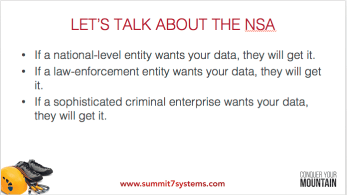
Part of my talk concerned the fact that no matter where you live, your local government has lawful means to get your data: they can subpoena you, or your cloud provider, to get it. There’s nothing that you can do about it. It’s a feature, not a bug, of modern legal systems. I often talk about this in the context of people’s fears that the NSA, GCHQ, or whomever will snag their data, by lawful or unlawful means. Here’s the slide I put up:

NewImage

I don’t think these are controversial assertions. However, at this point in my talk, Stuart McKee (chief technical officer for state and local government at Microsoft) flatly asserted that Microsoft does not comply with government subpoenas for customer data; I believe he used the word “never”. He went on to say that Microsoft has a pattern of resisting subpoena requests and that this “has gotten [them] into some trouble.” He concluded by saying that Microsoft’s standard action is to tell governments that they must subpoena the data owner, not the service provider.

I believe these assertions to be largely untrue, and certainly misleading. (I’ll leave aside the insulting manner in which Stuart asserted that I was wrong— after all, I am certainly wrong sometimes and generally appreciate when people point it out.) I want to set the record straight to the extent that I can.

First, Microsoft absolutely does comply with lawful subpoenas for customer data. This page at Microsoft’s web site summarizes their responses to lawful legal demands for customer information (both information about customers and information belonging to customers) across a broad variety of jurisdictions, from Argentina to Venezuela. To assert otherwise is ludicrous.

Second, Microsoft has a pattern of complying with these lawful subpoenas, not refusing them. When Stuart said that Microsoft is “in trouble” for refusing a subpoena, I suspect that he’s referring to Microsoft vs United States, where the issue at hand is that Microsoft was served a search warrant for data stored in a Microsoft data center hosted in Ireland. The data are stored there because the customer is located outside the US. Microsoft moved to have the warrant vacated, and when that failed, asked the cognizant district court to vacate it. The district court upheld the original warrant; Microsoft refused to comply and was held in contempt. Now this particular case is working its way through the US federal court system.

Let me be clear: I applaud Microsoft for standing up and resisting the overreach in the original warrant— there doesn’t seem to be (at least not to my layman’s understanding) a right of the US government, at any level, to subpoena data belonging to a non-US person or organization if it’s stored outside the US, even if it’s held in a cloud service operated by a US person or organization. The brief Microsoft filed likens this to a German court ordering seizure of letters stored in a safe deposit box in a US branch of a German bank. Having said all that, claiming that this kind of resistance is routine is overblown. It isn’t. If Microsoft were refusing subpoenas left and right, the numbers I mentioned above would look very much different.

Third, Microsoft’s policy is indeed to try to redirect access requests whenever possible. The Office 365 privacy page has this to say:

We will not disclose Customer Data to a third party (including law enforcement, other government entity, or civil litigant; excluding our subcontractors) except as you direct or unless required by law. Should a third party contact Microsoft with a request for Customer Data, we will attempt to redirect the third party to request the data directly from you. As part of that process, we may provide your contact information to the third party. If compelled to disclose Customer Data to a third party, we will use commercially reasonable efforts to notify you in advance of a disclosure unless legally prohibited.

In other words, Microsoft will try to redirect subpoenas from themselves to the data owner, where they are allowed by law to do so, and if they can’t, they will notify you, if allowed by law to do so. This is the only one of Stuart’s claims that I think is inarguable.

Finally, Microsoft proactively cooperates with law enforcement. The Microsoft Digital Crimes Unit newsroom contains press releases touting Microsoft’s cooperation with law enforcement agencies around the world (here’s just one example). This cooperation and disclosure extends to Microsoft proactively notifying law enforcement agencies when their PhotoDNA service identifies child porn images in customer’s private OneDrive data. I support their right to do this (it’s covered very clearly in the terms of service for Microsoft cloud services), and I believe it’s the right thing to do— but to claim that Microsoft never discloses customer data to law enforcement agencies while they are voluntarily doing so is both untrue and misleading.

Everyone’s interests are best served when everyone understands the specifics of the legal interaction between local and national governments and cloud service providers in various jurisdictions. This is a really new area of law in many respects, so it’s understandable that some things may not be clear, or even defined yet, but I wanted to correct what I view as dangerously misleading misinformation in this specific instance.

The bottom line: no matter what cloud service you choose, be sure you understand the policies that your cloud provider uses to determine the conditions under which they’ll cough up your data.

2 Comments

Filed under Office 365, Security, UC&C

Fixing SharePoint Online OneNote “something went wrong” errors

I recently ran into a problem with a SharePoint Online site that had previously been created on BPOS and moved around through various iterations of Office 365. None of the site users had ever used the OneNote notebook associated with the site, but the link was present in the side navigation bar. When I tried to access it, I got the infamous “sorry, but something went wrong” error page. (For another day: discuss the Fisher-Price-ization of service error messages; the low information content doesn’t scare end users but makes it impossible to troubleshoot problems.)

A little binging turned up a plausible solution: “SharePoint 2013 OneNote Notebook something went wrong error“. I was a little leery of turning off the feature for fear that it wouldn’t turn back on. However, I took the plunge. After disabling the feature and re-enabling it, I was able to open the OneNote Online notebook, but I wasn’t able to use the “open in OneNote” link until I added some content in OneNote Online. All’s well that ends well. This may not be the only solution for this problem, but it has a 100% success rate for me so far.

1 Comment

Filed under Office 365, UC&C

Microsoft rolls out Clutter admin improvements

Back in November, I wrote about my early experience with the Office 365 Clutter feature. I’ve been using it on and off– mostly off, due to a rare bug that surfaced because my mailbox is actually hosted on a portion of the Office 365 cloud that descends from the old Exchange Labs “friends and family” tenant. The bug kept Clutter from correctly moving clutter messages automatically; once it was fixed things returned to normal after I re-enabled the Clutter feature, and I’ve been happily using it since.

One of the big advantages of Office 365 is that the service team can develop and release new features much faster than they can for on-premises services. Sure enough, Microsoft today announced three new features for Clutter.

The biggest of these is the ability to create transport rules that flag messages, or senders, as exempt from Clutter processing. This is exactly the same thing as specifying safe senders for message hygiene filtering, although the implementation is a little different. You’ll create a transport rule that has the conditions and exceptions you want, but with an action that adds a header value of “ClutterBypassedByTransportRuleOverride: TRUE”, as described here. I have not personally had even a single false positive from Clutter since I’ve been testing it, and I haven’t seen any complaints about false positive problems from other users, MVPs, or customers. Having said that, Microsoft was smart to include a way to exempt certain messages from processing, as this will soothe some users and tenant administrators who are worried about the potential to have important messages be misdirected.

Second, the Clutter folder can now be managed by retention policies. This is an eminently logical thing to do, and it nicely highlights the flexibility of Exchange’s messaging records management system.

Rounding out the trio, you now have a very limited ability to customize the message that users see when they enable Clutter for their mailboxes: you can change the display name that the notification appears to be from, and you’ll soon be abe to change the logo. Frankly, this is weak sauce; there’s no way to customize the text of the notification, add custom URLs to it, or otherwise modify it in a useful way. Long-time Exchange administrators will recognize a familiar pattern exemplified by customizable delivery status notifications (DSNs), quota warning messages, and MailTips in previous versions of Exchange: first Microsoft delivered a useful feature with no customization capability, then they enabled limited customization, then (after prolonged complaining from customers) they broadened the range of things that could be customized. Let’s hope that pattern holds here.

There’s still one weak spot in the Clutter feature set: it still requires individual users to opt in (or out). While it’s true that users would likely be alarmed by the sudden forceful application or removal of the Clutter feature from their mailboxes, it’s also true that Office 365 as a whole needs to provide better controls for administrators to regulate which service features users have access to. I am hopeful that we’ll see better admin controls (and reporting) for this feature in the future.

While these improvements aren’t necessarily earth-shaking, they do add some welcome utility to what is already a valuable feature. Clutter is a great example of a feature that can make a measurable positive difference in users’ satisfaction with the service, and I look forward to more improvements in the feature.

1 Comment

Filed under Office 365, UC&C